Groups
Create a Group for ongoing shared costs — a household, a trip, roommates — log shared expenses, track shared goals, and always see who owes what.
- 1
Understand what a Group is
A Group is different from sharing your financial space: instead of granting access to everything, each person keeps their own accounts private, and only the expenses they choose to add to the Group are visible to everyone in it.
TipYour accounts, balance, and personal transactions are never visible inside a Group — only what you explicitly add to it.
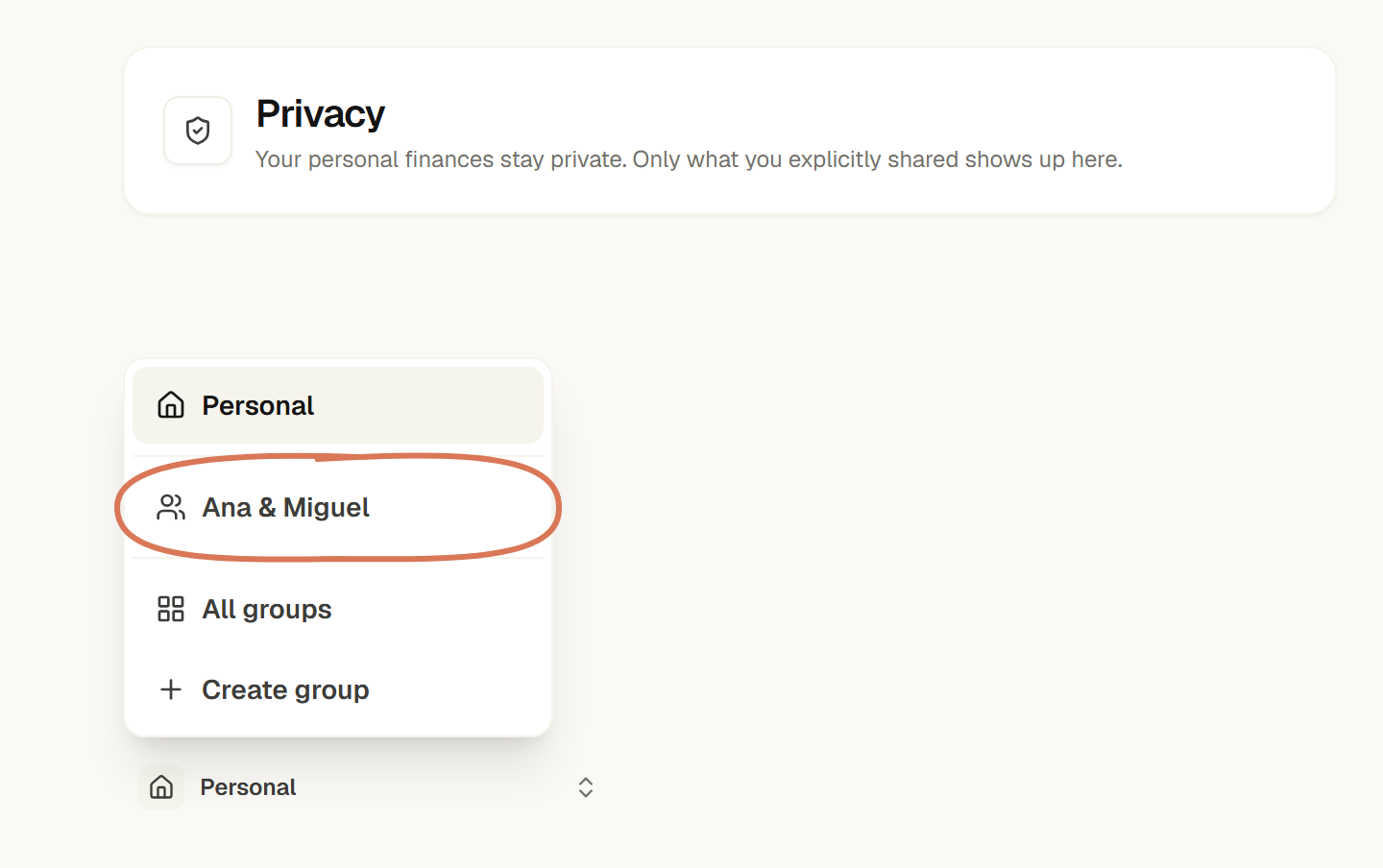
The group contains only what you choose to share. Example data · Select to enlarge. - 2
Create a Group and invite people
Create a Group from the context switcher, pick a type (household, couple, trip, project, friends, or other), and invite people by email. Each person accepts the invite before joining.
TipYou can manage roles, remove someone, or leave the Group at any time under Members.
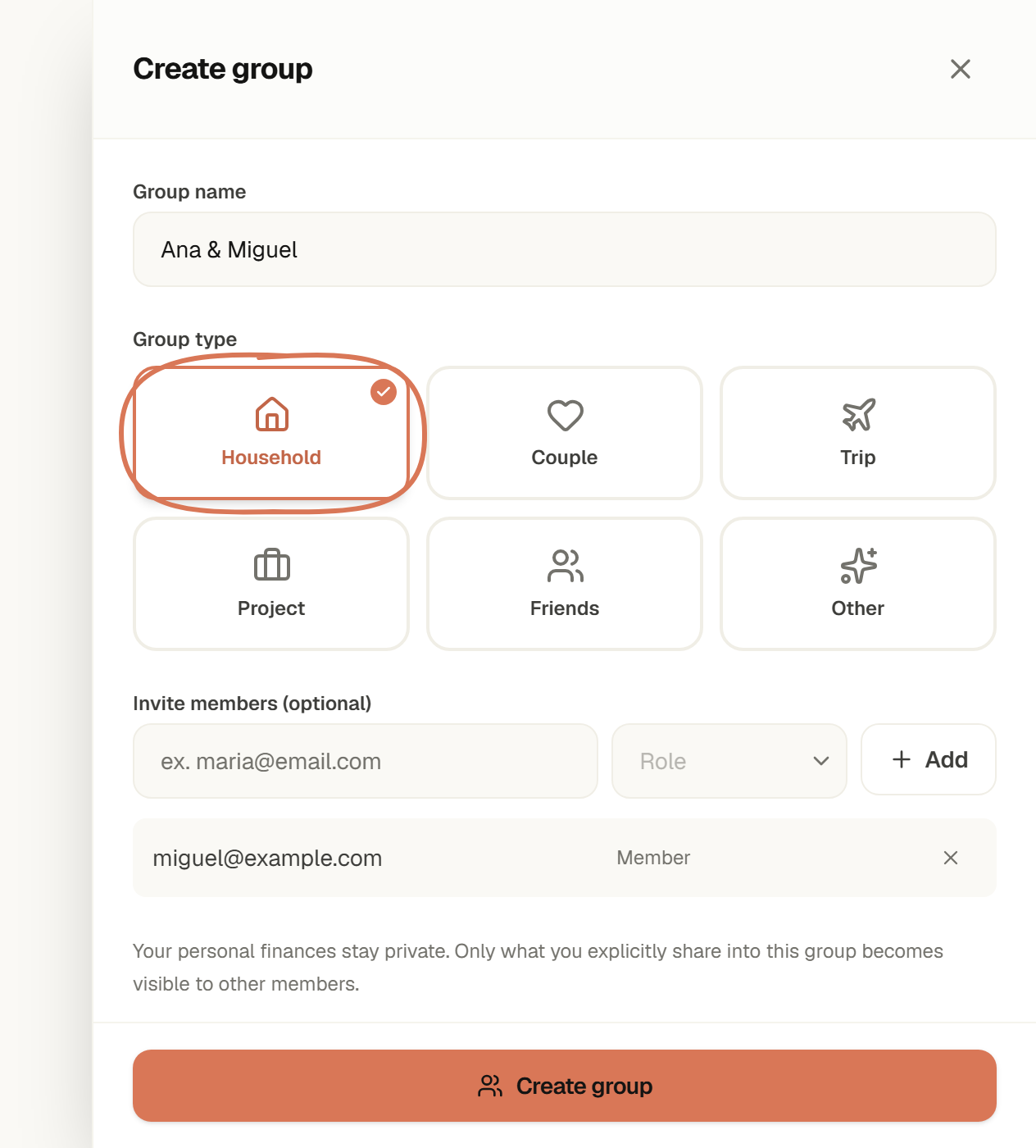
Choose the group type and prepare invitations. Example data · Select to enlarge. 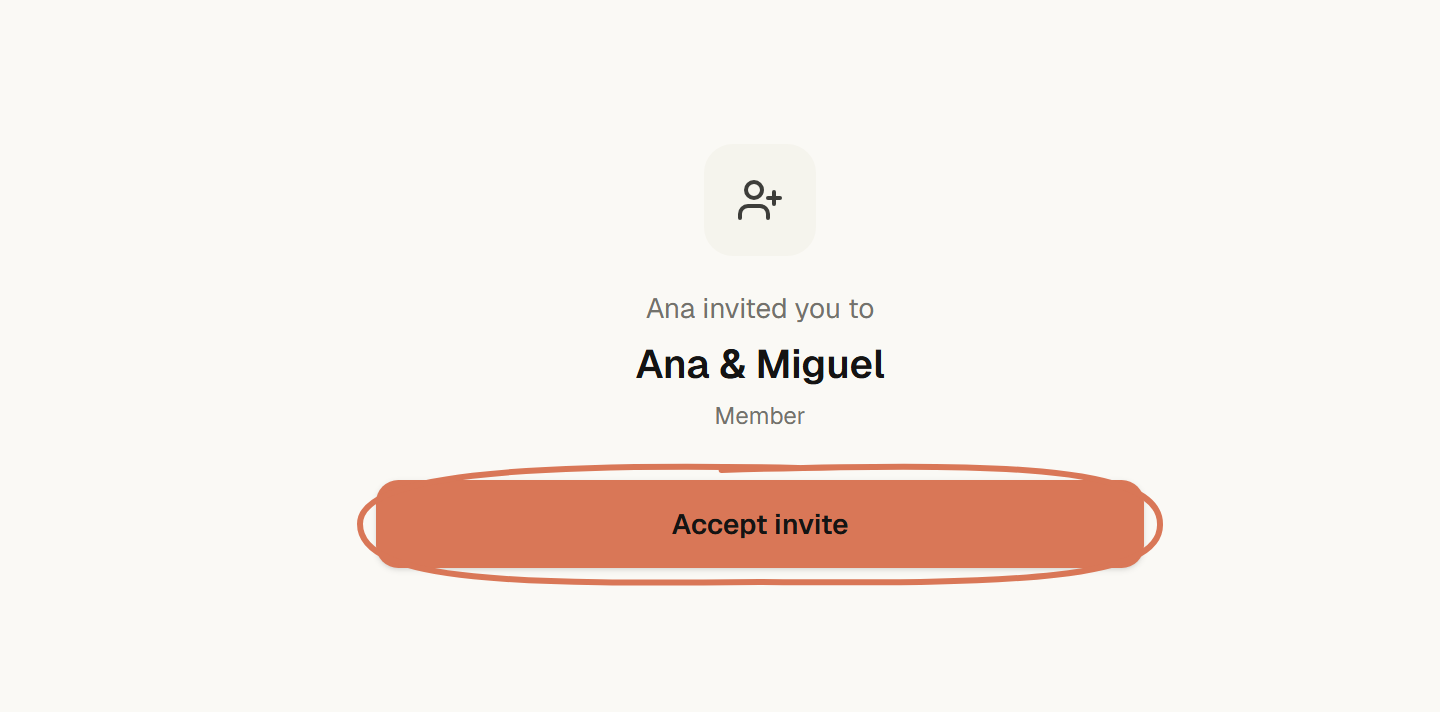
The invited person confirms they want to join. Example data · Select to enlarge. 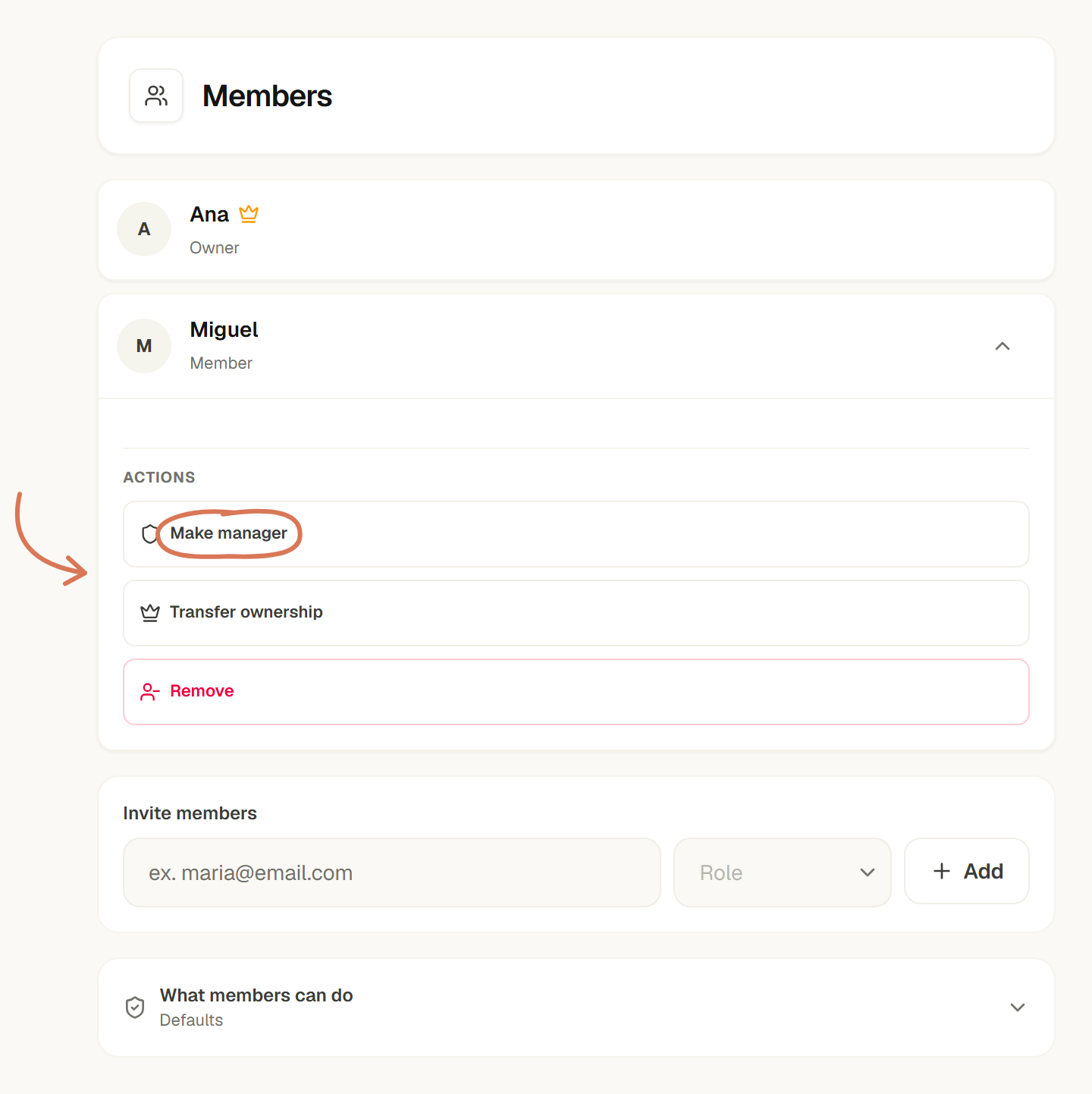
In Members, expand the person you want to manage. Example data · Select to enlarge. 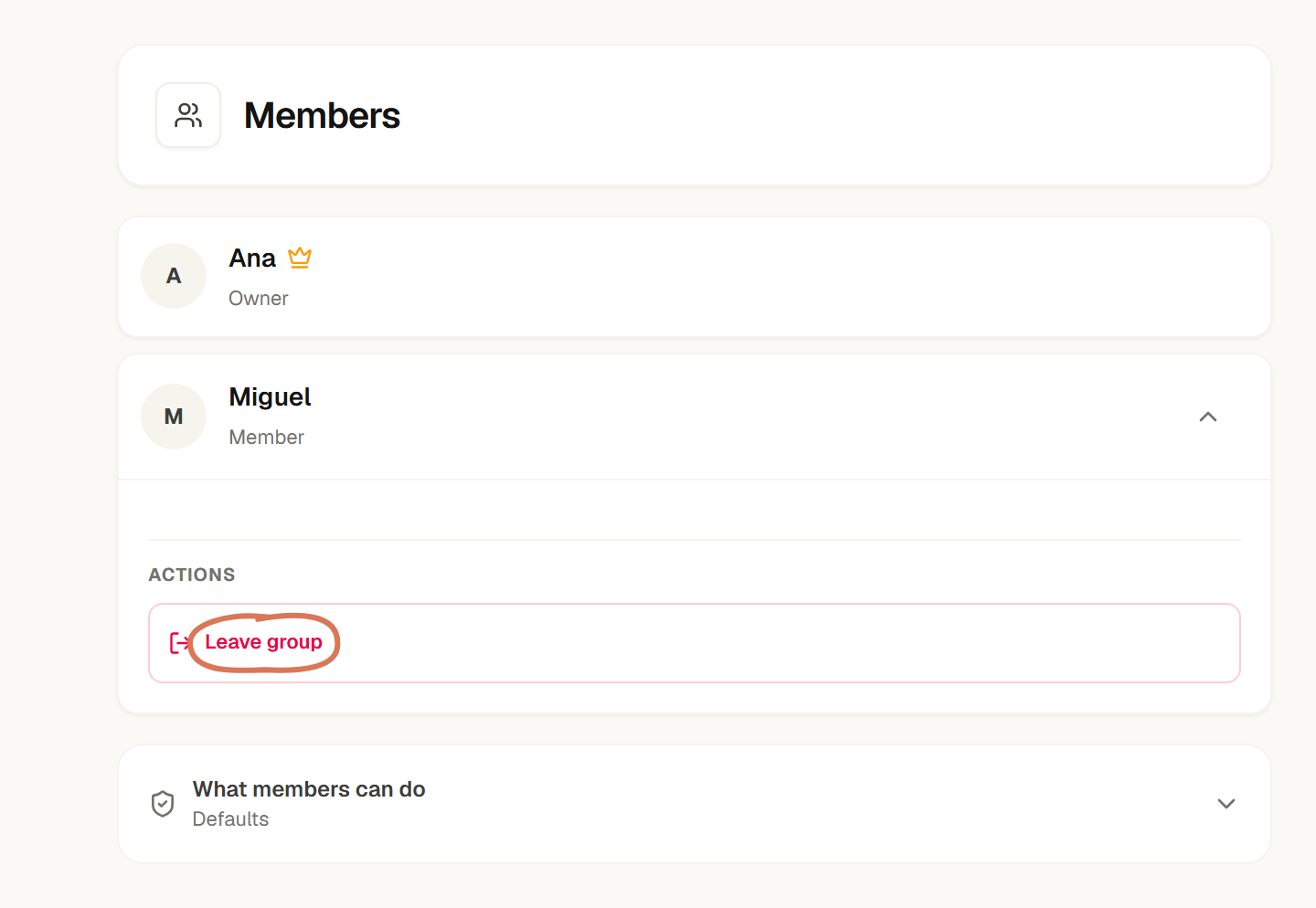
To leave as a member, expand your own actions. Example data · Select to enlarge. - 3
Add a shared expense
Under Expenses, add the description, category, date, and amount, who paid (it can be more than one person), and how it splits across participants.
- Equal — the amount splits into equal shares across everyone.
- Exact amounts — you set exactly how much each person owes.
- Percentage — you assign a percentage to each participant.
- Shares — you split by shares (e.g. 2 shares for one person, 1 for another).
TipThe preview always shows the exact amount each person will owe before you save.
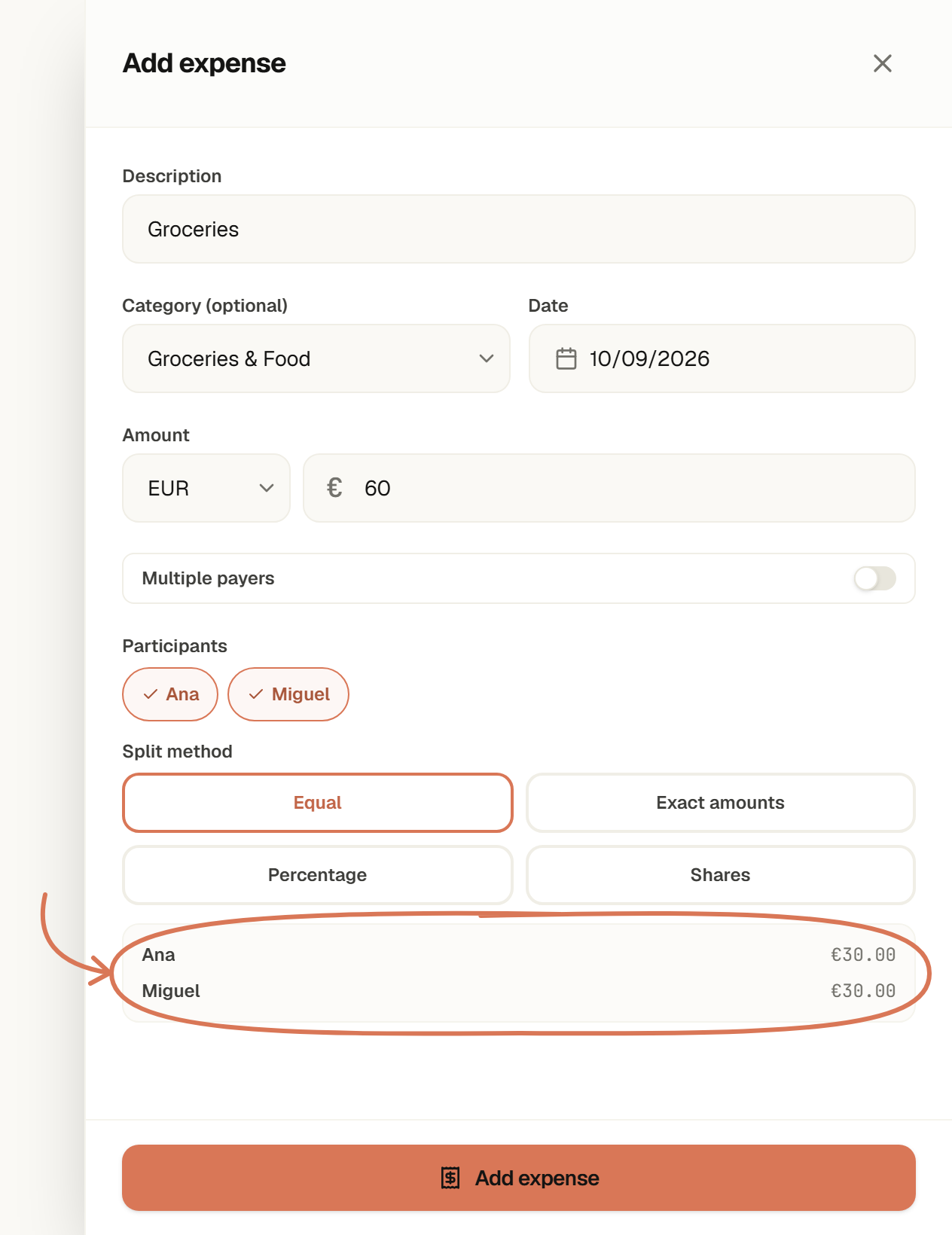
Equal: €60 is split into €30 per person. Example data · Select to enlarge. 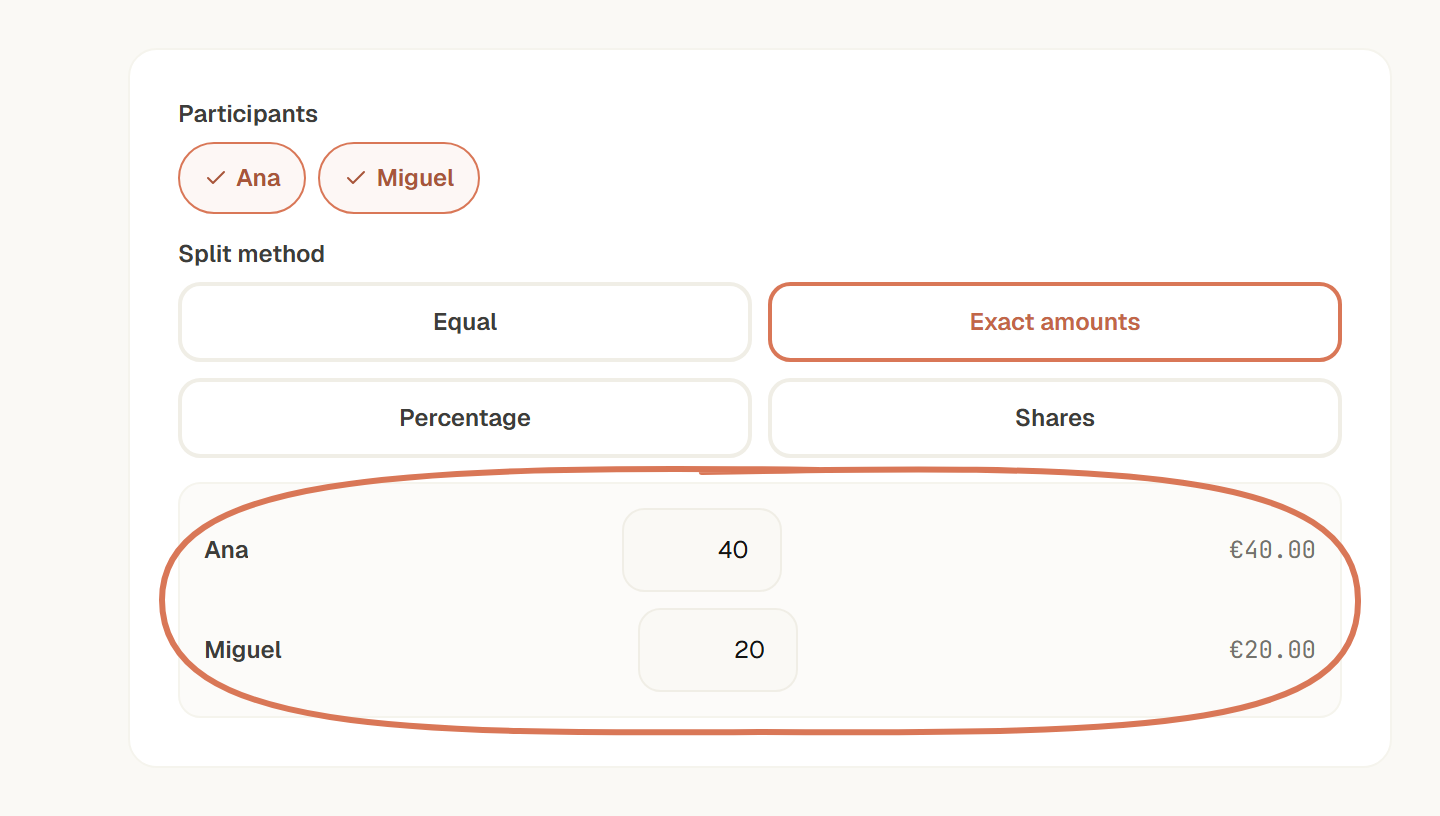
Exact amounts: choose each person’s amount. Example data · Select to enlarge. 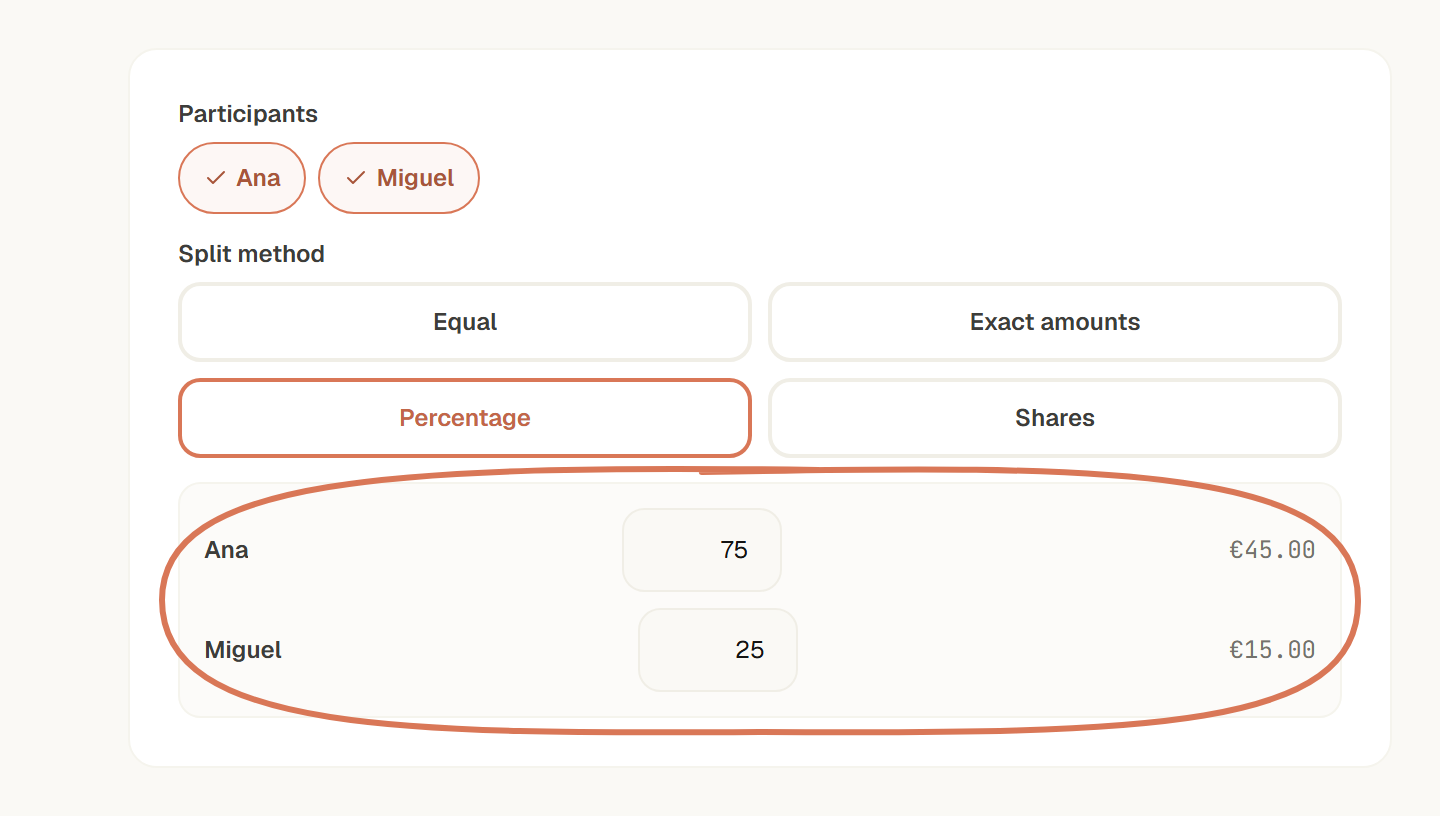
Percentage: 75% and 25% of €60 become €45 and €15. Example data · Select to enlarge. 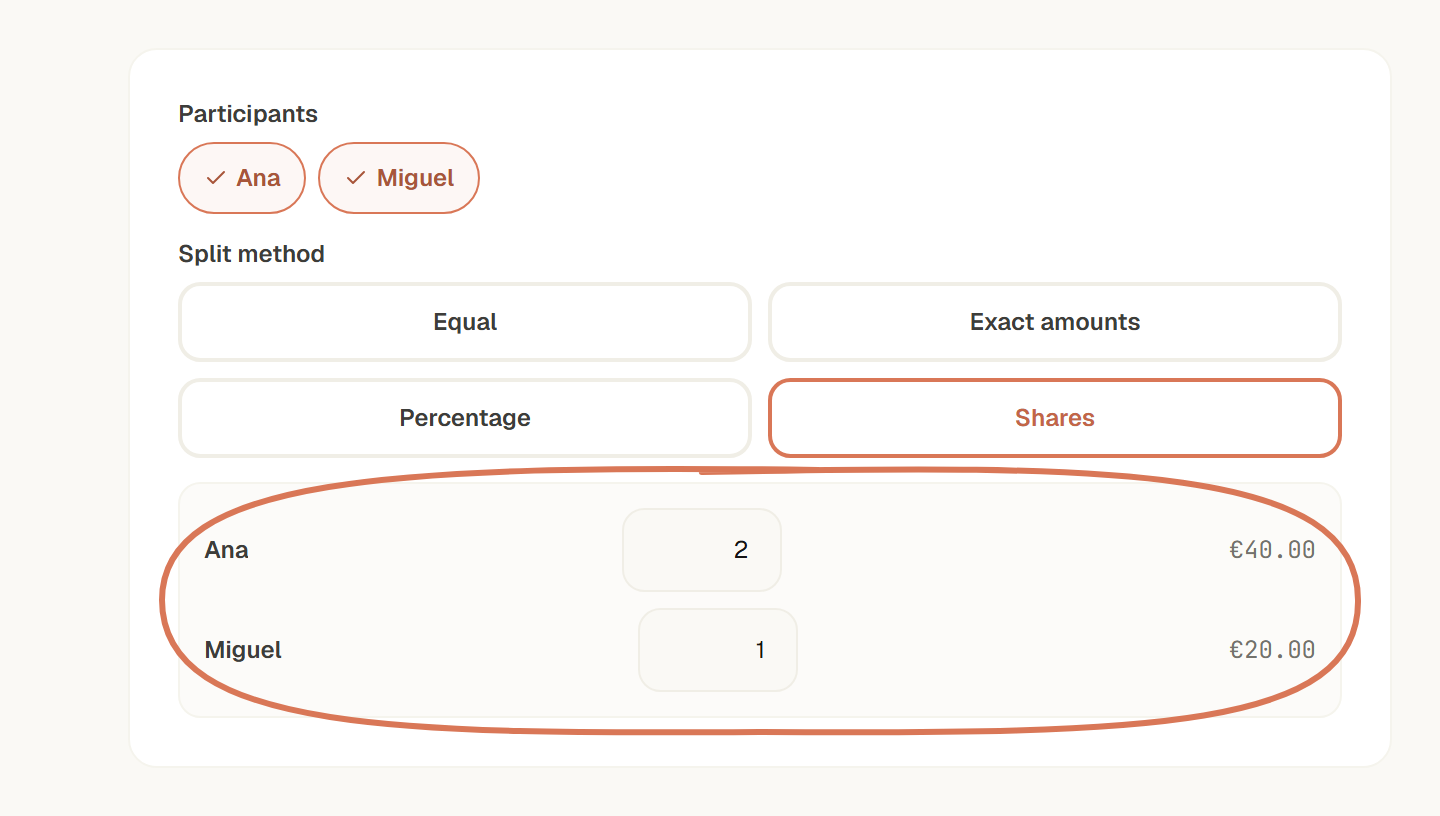
Shares: a 2-to-1 split gives €40 and €20. Example data · Select to enlarge. - 4
Share a personal transaction instead of re-entering it
If you already logged the expense in your personal transactions, you do not need to re-enter it: open it and choose share into a Group. iowii copies the description, date, and amount, and only asks you to confirm who is involved and how it splits. On Transactions, iowii also flags a few expenses that look like they belong to the Group — like rent or a subscription that repeats every month — with a small card suggesting you share it. It is only a suggestion and is never shared automatically: dismiss it if it does not apply.
TipA transaction can only be shared one way at a time: either into a Group or via a public link — never both at once.
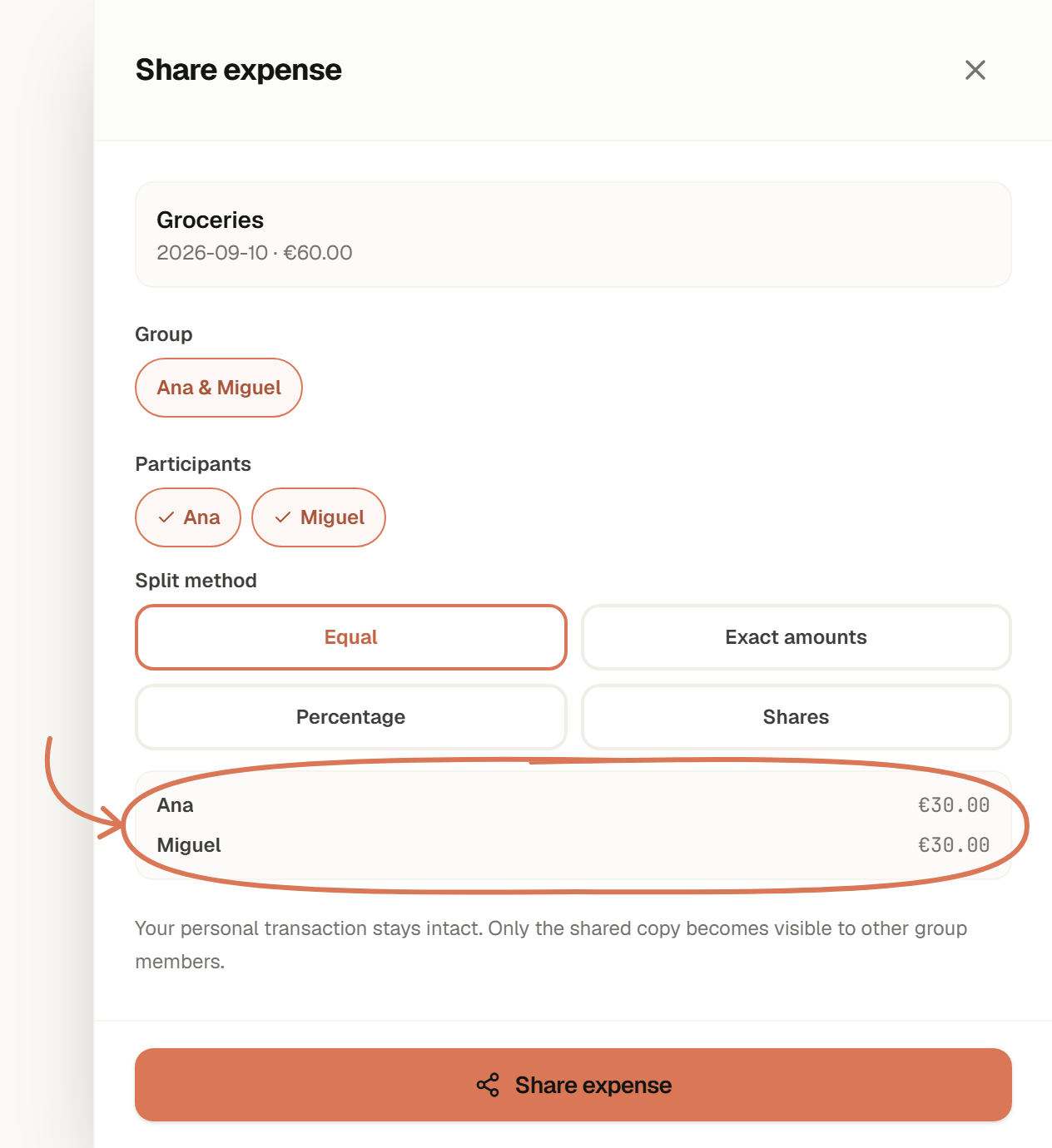
The transaction details are already filled in; confirm the split. Example data · Select to enlarge. - 5
See who owes what
Under Balances you see, for each person in the Group, how much you owe them or they owe you — a single figure that already accounts for every expense and payment. Expand it to see the full history behind that number.
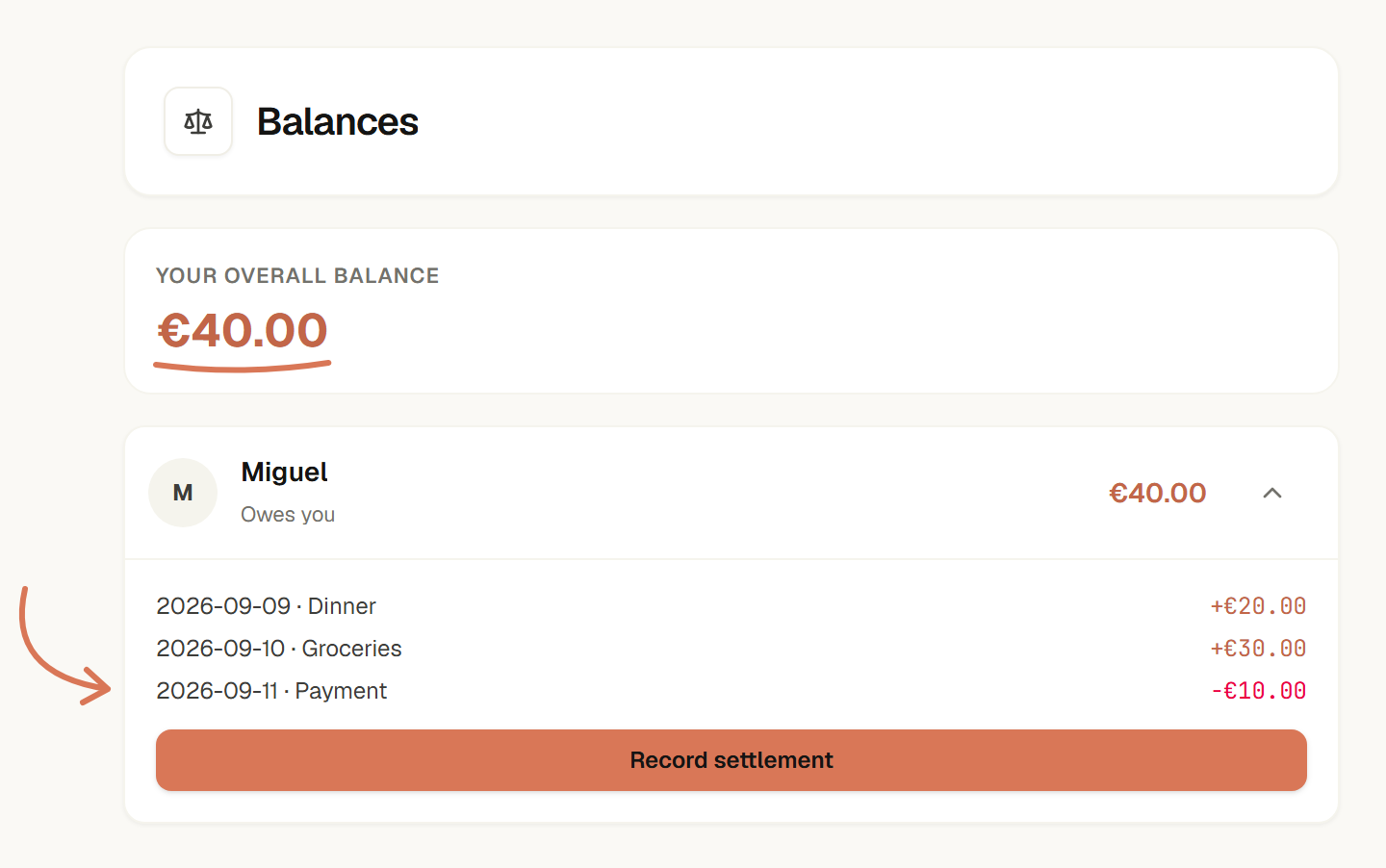
The history explains the balance: €30 + €20 − €10 = €40. Example data · Select to enlarge. - 6
See where the money goes
Under Insights you see, for the period you choose, how much the group spent, how that compares with the previous period, and where the money went. It is just a reading of the expenses already in the group — it changes nothing.
- Periods — this month, last month, 3 months, this year, or all time. The comparison is always with the previous period of the same length.
- By category — the biggest categories and each one's weight; the rest are grouped as Other.
- Who paid and who shared — how much each person paid and what their share was, with the difference in words ("Paid €45.00 more").
- Last 6 months — a simple chart with each month's total.
- Biggest expenses — the five largest in the period.
TipDeleted expenses don't count. An expense in another currency counts at the amount already converted to the group's currency.
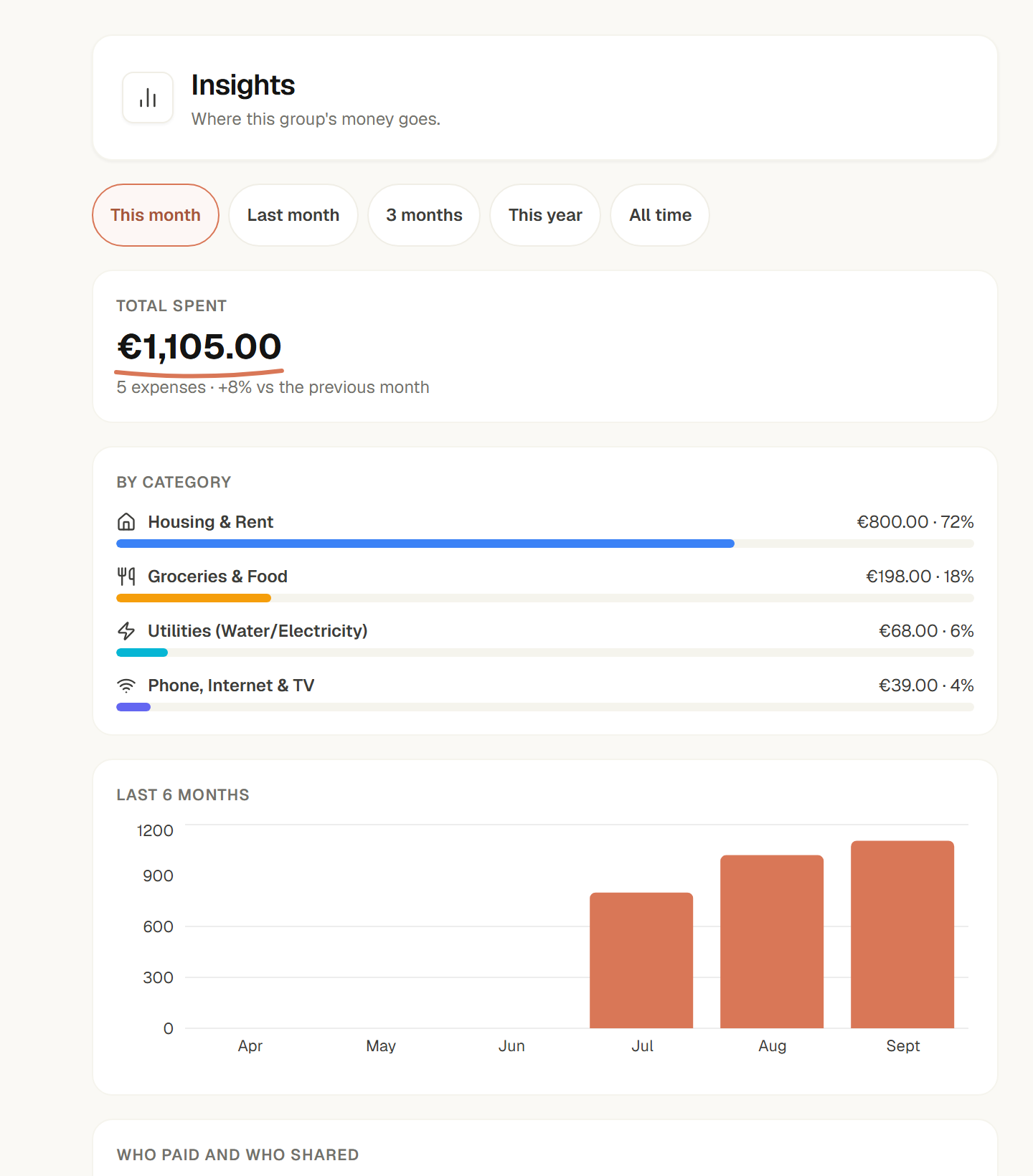
The total and the change versus last month, right at the top. Example data · Select to enlarge. - 7
Comment on an expense
Open an expense under Expenses and write under Comments to ask or explain something right where it belongs, instead of in a separate chat. Expenses with comments show the number in the list.
- Anyone in the group can comment, even if they're not on the expense.
- Editing and deleting — only the author can edit. The author, or whoever manages the group, can delete.
- Private notification — the people who paid or share in the expense are told, without showing the comment's text.
- Plain text only — up to 500 characters. There's no formatting or links.
- Deleted expenses — the conversation stays visible, but you can no longer comment.
TipCommenting doesn't change the expense or the balances.
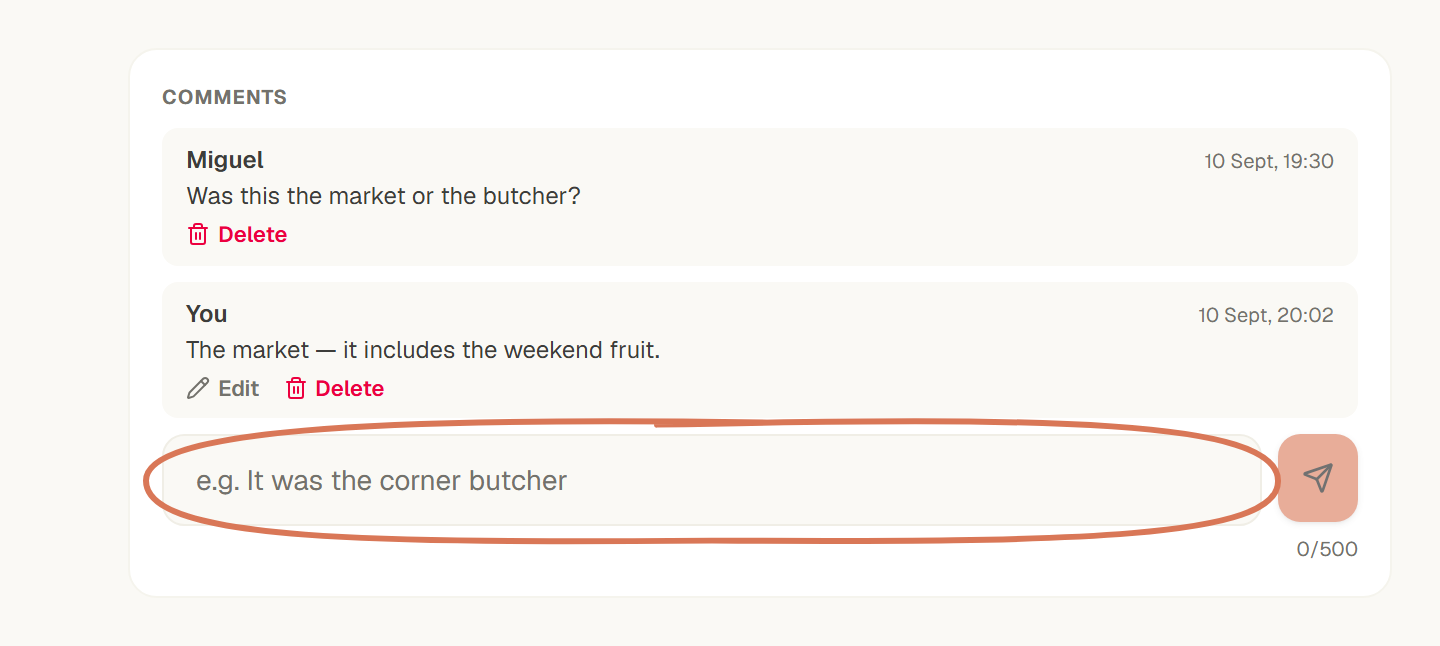
People on the expense get a private notification. Example data · Select to enlarge. - 8
Add an expense in another currency
A group always has one currency. If you paid for something in another currency — on a trip, say — choose that currency when you add the expense and enter the exchange rate. iowii converts it right then and keeps the original amount and the rate, and every balance stays in the group's currency.
- The rate is always yours — iowii can suggest the day's reference rate (ECB), but it is only used if you tap Use. If the suggestion isn't available, type the rate.
- You see the total before saving — under the rate, "Equals …" shows the amount in the group.
- One payer, no exact amounts — on an expense in another currency, one person paid and the split is equal, by percentage, or by shares.
- Sharing a personal transaction in another currency — when you share it, you enter the rate and iowii uses the transaction's own amount and currency.
- Editing — you see the amount and rate you entered again. Changing the rate recalculates the total and the split.
- Exporting — the CSV includes the original amount, currency, and rate.
TipOnly the expense is converted. Settlements, recurring bills, and goal contributions stay in the group's currency.
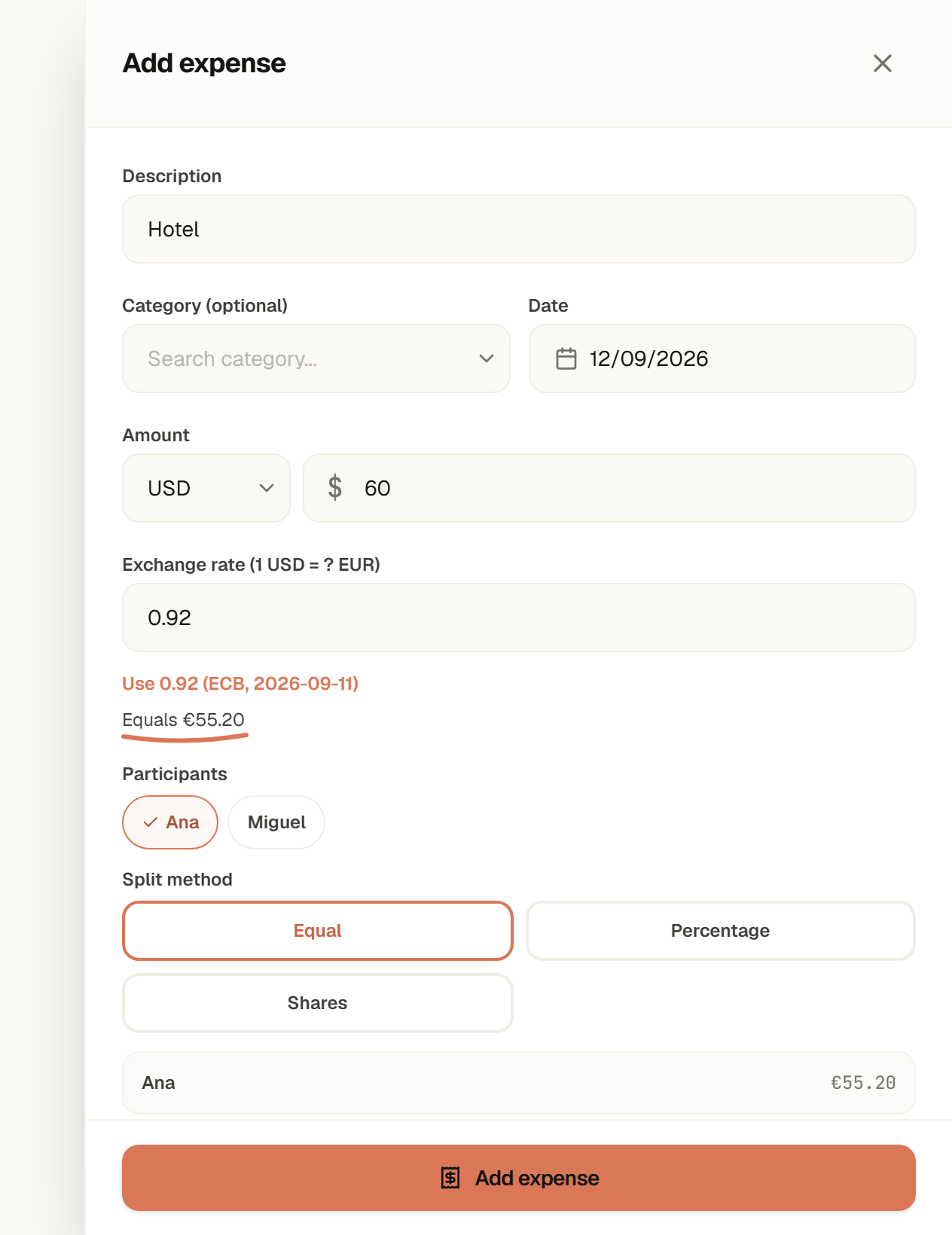
The group sees the total already converted to its own currency. Example data · Select to enlarge. - 9
Choose what members can do
Under Members, the What members can do card shows the group's permissions. Everyone can see it, so they know what they can do; only the owner can change them. By default nothing changes: each option starts as it always was.
- Members manage goals, budgets, or recurring bills — by default only managers do. Turn the option on to let members too.
- Members invite people — as members only, never as managers.
- Managers edit any expense — by default only the people who paid or shared in an expense can edit it. Turned on, managers can too; the activity shows who changed it.
- Members add expenses and use the assistant — on by default. Turn them off to take them away from members.
- Always fixed — deleting the group, transferring ownership, and changing roles always stay with the owner, and the owner never loses access.
TipTurning off "Members add expenses" also stops members confirming recurring bills and sharing transactions into the group.
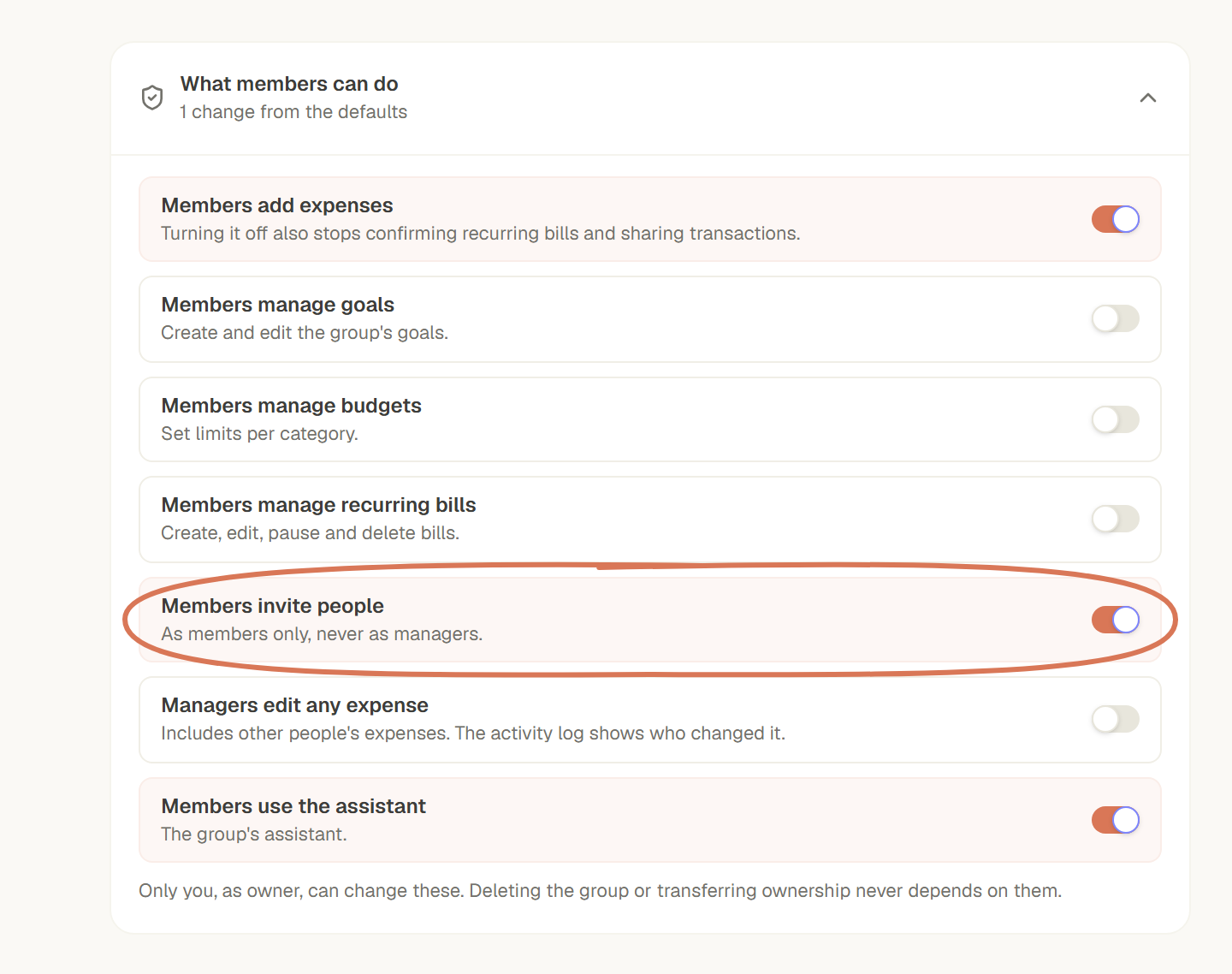
Only the owner turns each permission on or off. Example data · Select to enlarge. - 10
Share expenses automatically
If you always share the same kind of expense — rent, electricity — create a rule under Rules → Auto-sharing: you choose the group, the category, the split and, if you like, some text or a minimum amount. When a matching expense appears, it waits under Ready to share on Transactions with everything already filled in.
- You always confirm — nothing is shared without a tap from you on Share or Share all.
- New expenses only — a rule applies to expenses created after it. It never pulls in old spending.
- Skip — take an expense off the list without sharing it. It won't come back.
- Turn off or edit — switch a rule off any time. If you change what it catches, it counts again only from that moment.
- Split — equal, percentage, or shares. An exact-amount split doesn't fit, because the amount changes from expense to expense.
TipThe ready-to-share list shows on the desktop version of Transactions; rules are edited under Rules on any device.
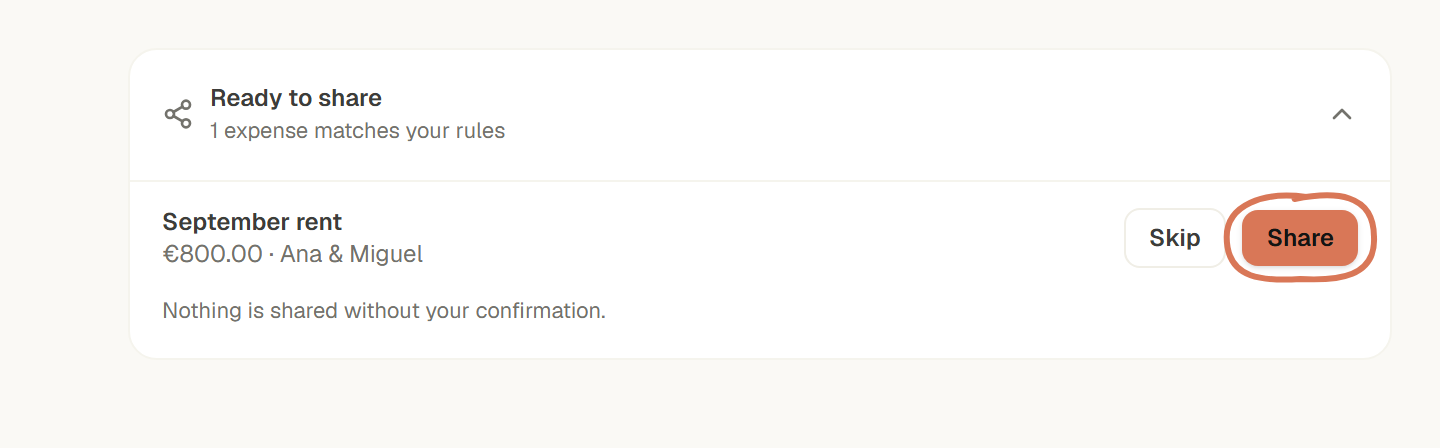
Expenses that match your rules wait for your confirmation. Example data · Select to enlarge. - 11
Settle up with fewer payments
In a Group of 3 or more people, debts can form a chain — you owe someone who in turn owes someone else. Under Balances, Simplest way to settle up suggests the fewest payments to bring everyone to zero. You only see your own payments.
- Just a suggestion — the per-person balances further down don't change.
- Record — opens the payment already filled in with the suggested amount. You can adjust it before saving.
- Updates itself — as payments are recorded, the suggestion shrinks until it disappears.
- Only shown when it helps — if the simplest way matches your individual balances, there is no suggestion.
TipAfter you pay someone you never owed directly, the balance between the two of you shows reversed until the chain is settled — that's expected.
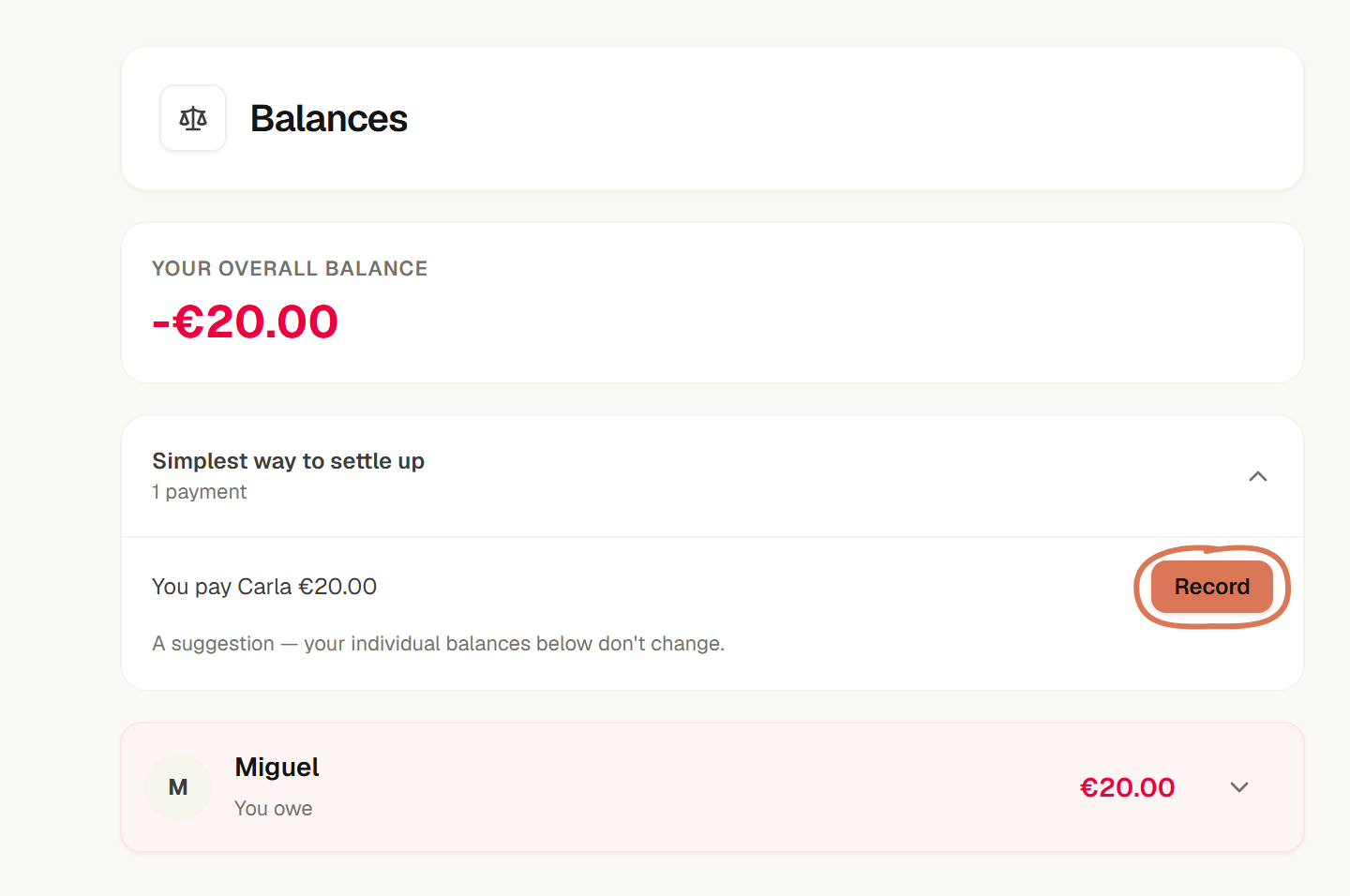
Ana owes Miguel and Miguel owes Carla: Ana can simply pay Carla. Example data · Select to enlarge. - 12
Get settlement reminders
If you have owed money in a Group for more than 7 days, iowii sends you a private notification reminding you to settle up. Only the person who owes is reminded — the other person is never told a reminder was sent.
- No nagging — the first reminder arrives after 7 days, then one a week, at most 3. It stops as soon as the balance is settled.
- Private — the notification shows no names or amounts. If you owe in several Groups, you get just one.
- Mute a Group — under Balances, turn off Settlement reminders. You can turn it back on any time.
- Needs notifications on — you need notifications enabled in your Profile.
TipBalances under €5 never trigger a reminder.
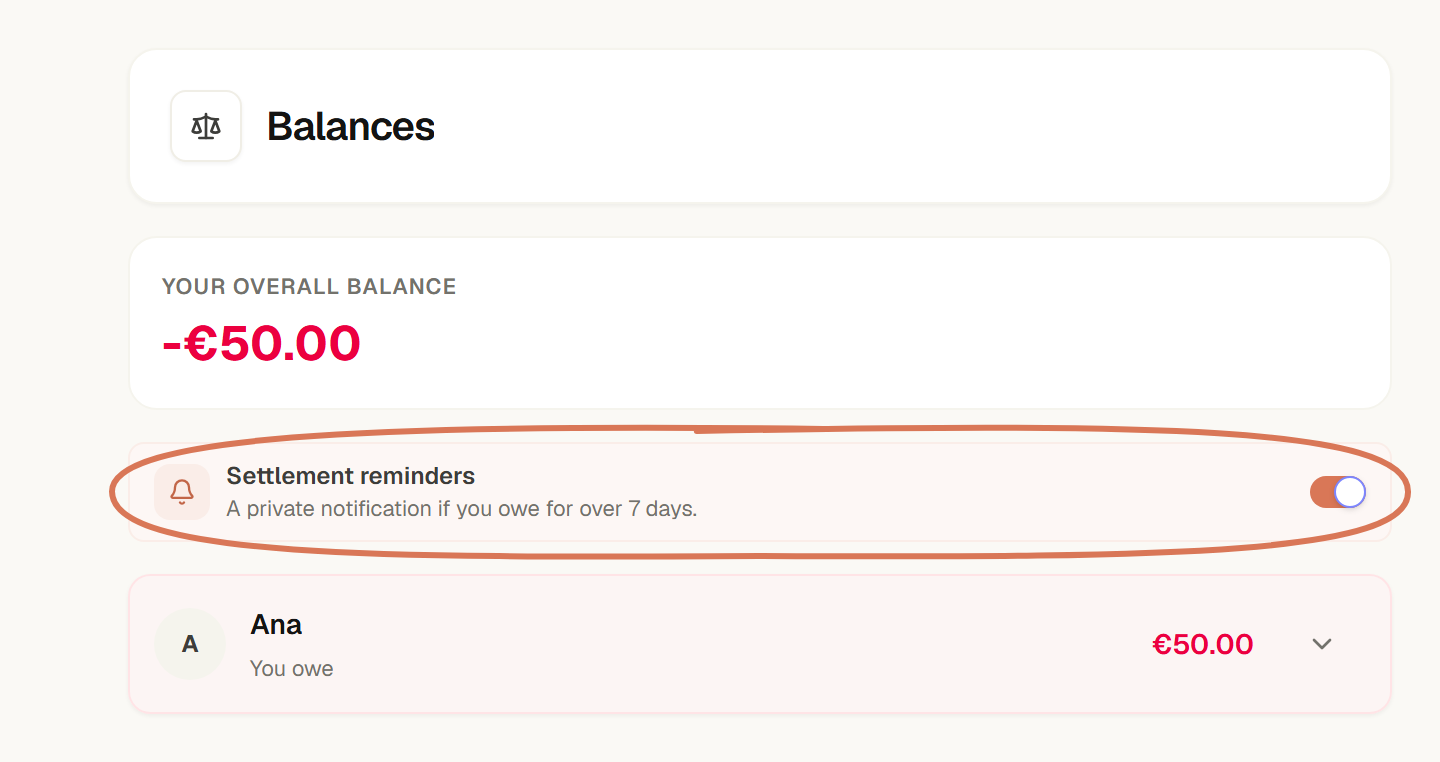
Under Balances, you can mute reminders for each Group. Example data · Select to enlarge. - 13
Create a shared goal
Under Goals, create a Group objective with a name, a target amount, and optionally a date. Anyone in the Group can contribute, even if they're not marked as a participant — the participant list is purely informational, to show who the goal is for.
- Shared progress — the funded amount is always the sum of everyone's contributions, never a separately stored number.
- Attributed contributions — every contribution is tied to who made it, with a date and an amount.
- From a personal transaction — you can copy the amount and date from a transaction you already logged instead of typing them again.
- Closing the goal — whoever manages the Group can close the goal once it no longer makes sense to keep contributing.
TipYou can only edit or delete your own contributions — to correct someone else's, ask them to do it.
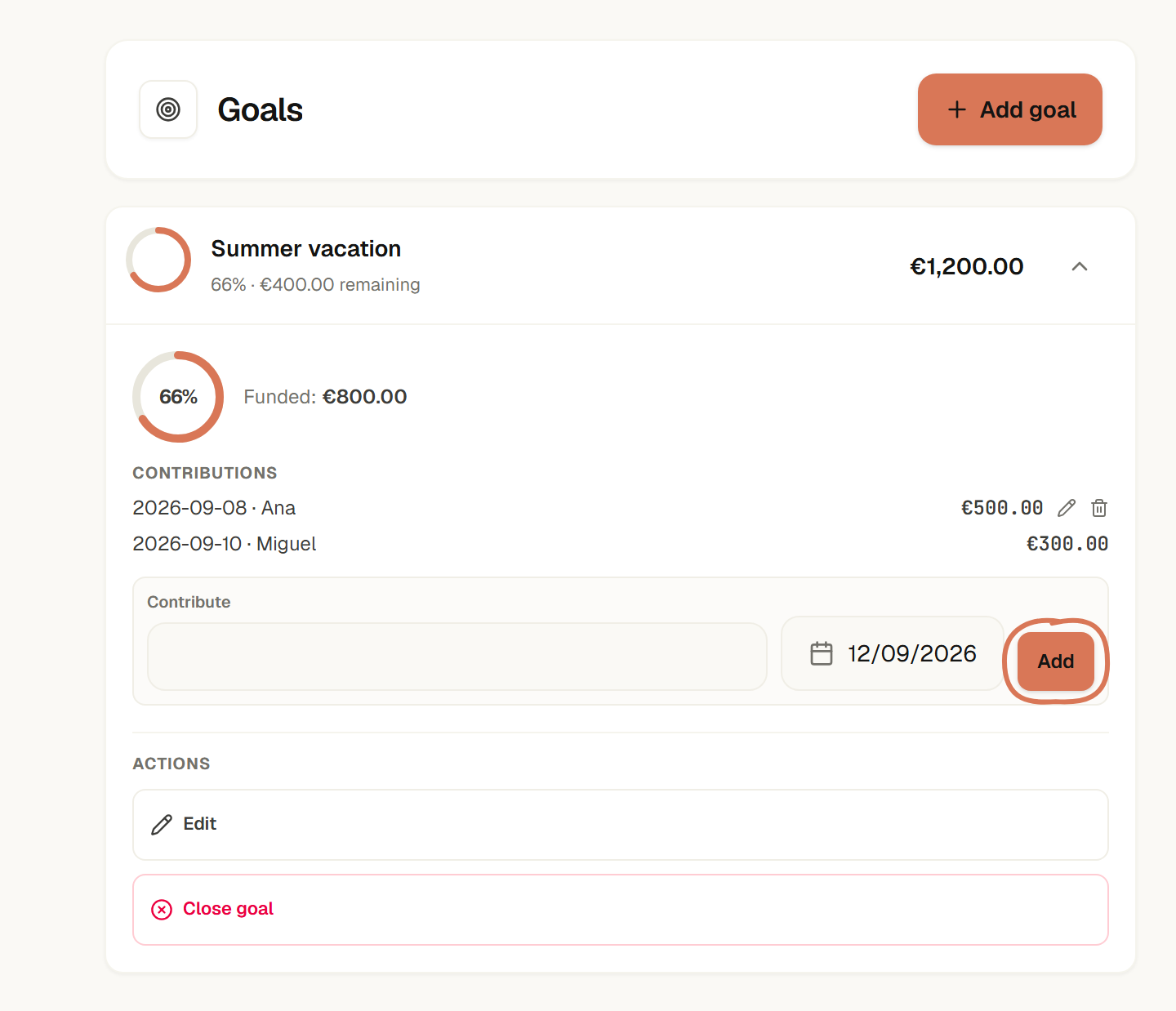
Anyone in the Group can contribute to the goal. Example data · Select to enlarge. - 14
Set a shared budget
Under Budgets, whoever manages the Group sets a monthly limit per category — for example, €400 for Groceries. Anyone in the Group sees how much has been spent in that category this month, with a bar that changes color near or over the limit.
TipThe spent amount is always the sum of the Group's real expenses in that category and month — never a separate number that could drift out of sync.
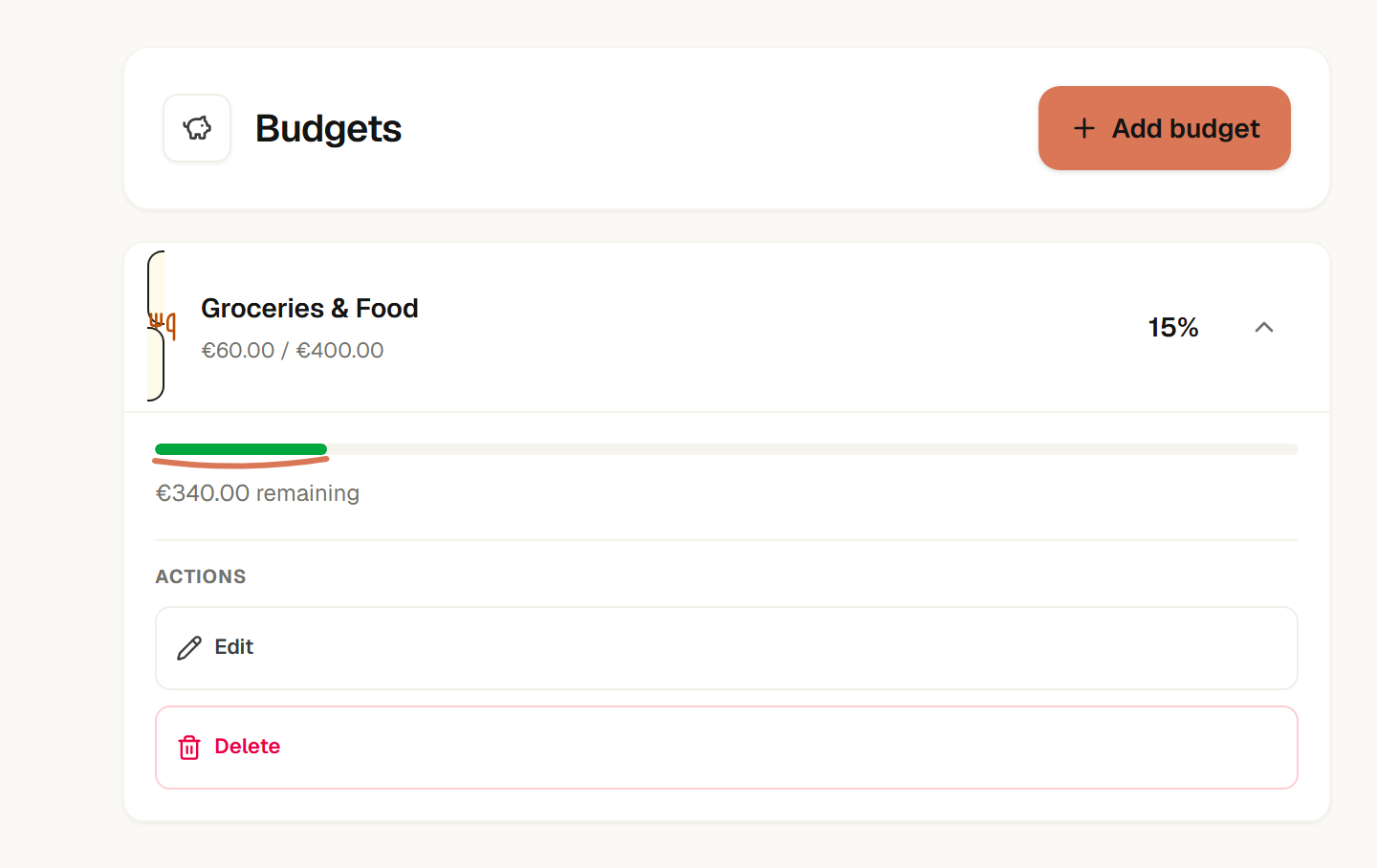
The bar shows how much has been spent in the category this month. Example data · Select to enlarge. - 15
Track recurring bills
Under Bills, whoever manages the Group adds a bill that repeats — rent, internet, electricity — with its usual amount, how often it repeats, the first due date, who pays, and how it is split. When the date arrives, the bill shows up under To confirm. Anyone in the Group can confirm it: only then is the shared expense created.
- Nothing is created on its own — iowii never records an expense for you. No confirmation, no expense.
- The amount can change — when you confirm, adjust that month's amount (electricity, for example). The split is recalculated.
- Skip one time — if the bill doesn't apply this month, choose Skip. It creates no expense.
- Month ends — a bill due on the 31st lands on the last day of shorter months and goes back to the 31st afterwards.
- A reminder for the payer — you get a private notification on the day, and another if it is still unconfirmed 3 days later. Under Bills, turn off Bill reminders to mute a Group.
- Pause or delete — whoever manages the Group can pause a bill or delete it. Expenses already created stay.
TipA bill supports an equal, percentage, or shares split — an exact-amount split can't adjust when the amount changes.
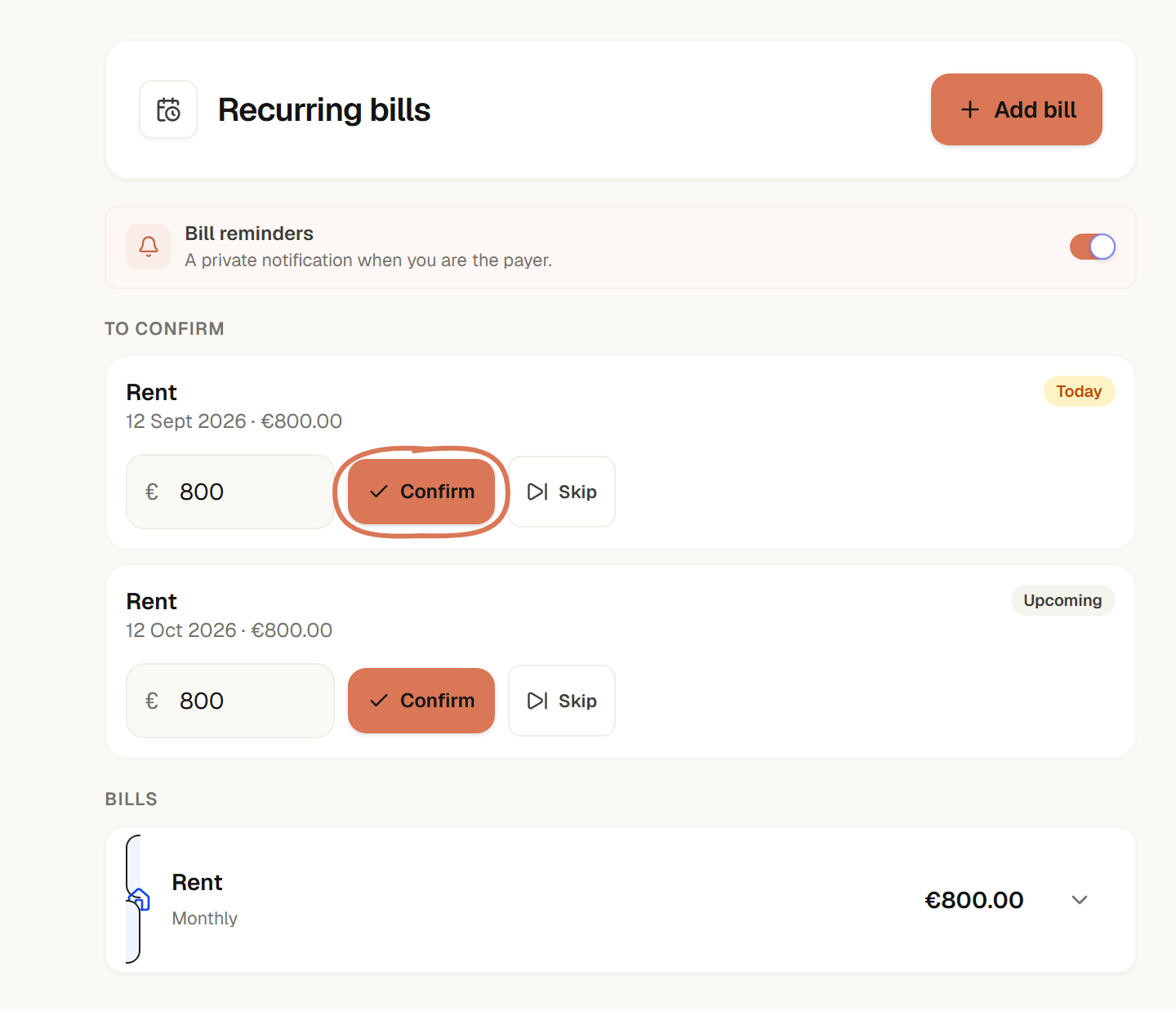
Confirm each bill in one tap; the amount can change. Example data · Select to enlarge. - 16
Ask the Group assistant
Under Assistant, ask in plain language about your Group: who owes what, how much you spent this month (or in a category), and how a goal is going. Available from the Essential plan.
- Amounts are never invented — the assistant only picks which already-calculated number to show; iowii writes the figure itself, from the Group's own books.
- Propose an expense — say "I paid €45 for groceries, split with Ana" and the assistant prepares the expense already filled in. It is only created once you review and confirm it.
- Privacy — the assistant only sees calculated totals. Descriptions, notes, and emails never reach it, and people's names are swapped for letters before your question leaves iowii.
TipIt cannot delete, edit, settle up, or remove anyone — use the Group's pages for that.
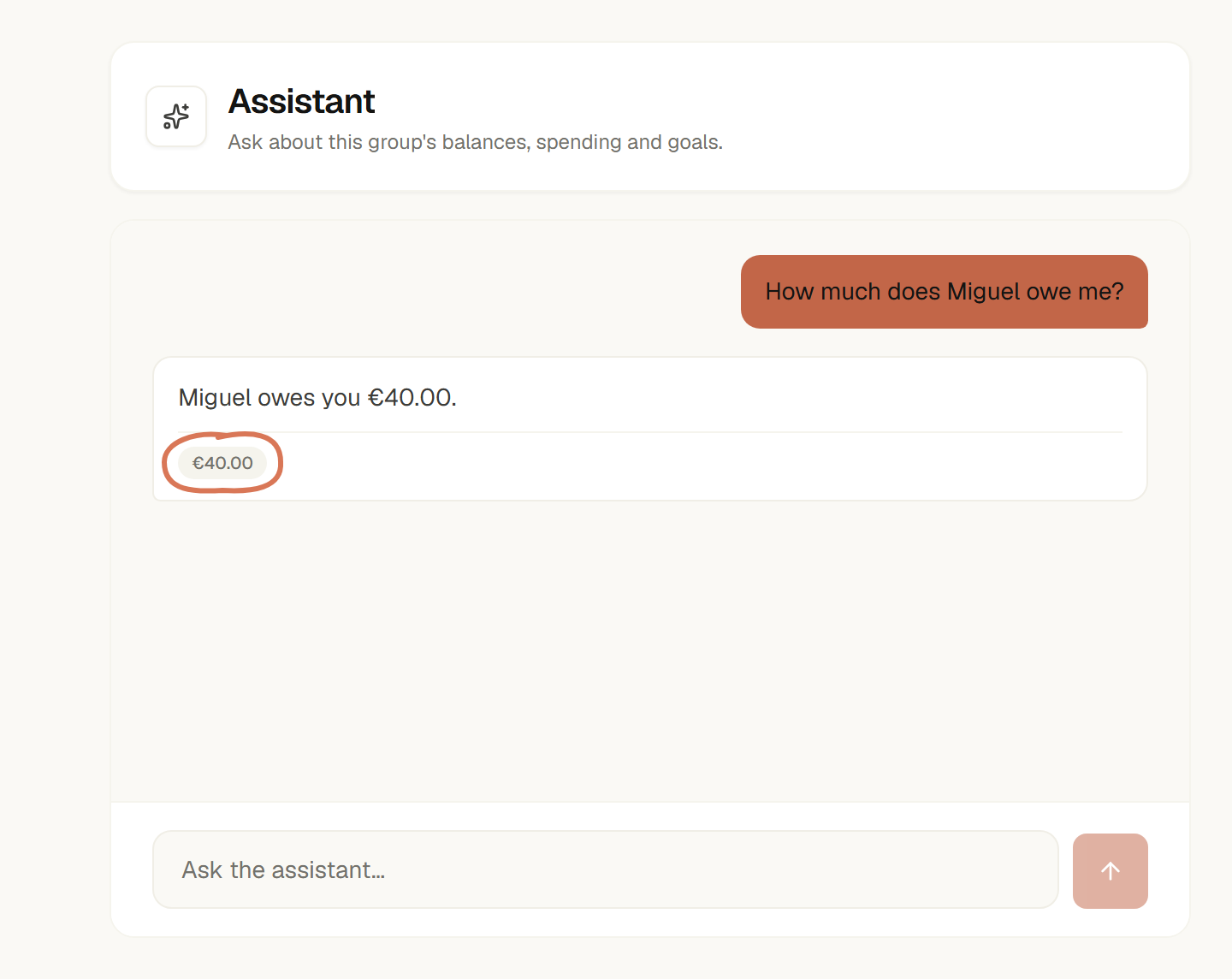
Every answer shows the calculated figure it is based on. Example data · Select to enlarge. - 17
Record a payment
When someone settles up outside iowii (a transfer, cash), record the payment in the Group so the balance stays correct. You can also add it to your personal transactions at that point, if you want.
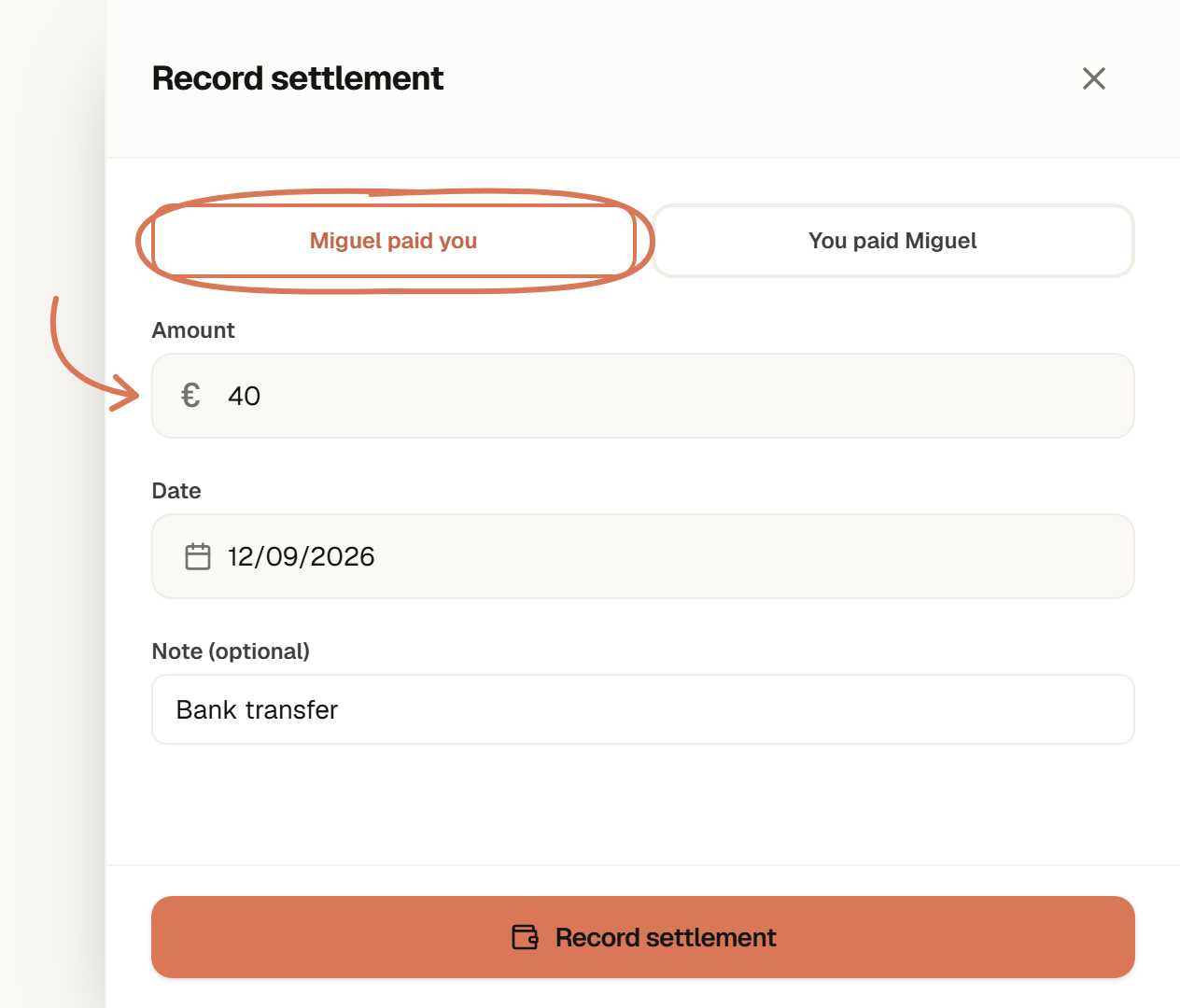
Record the payment that already happened outside iowii. Example data · Select to enlarge. 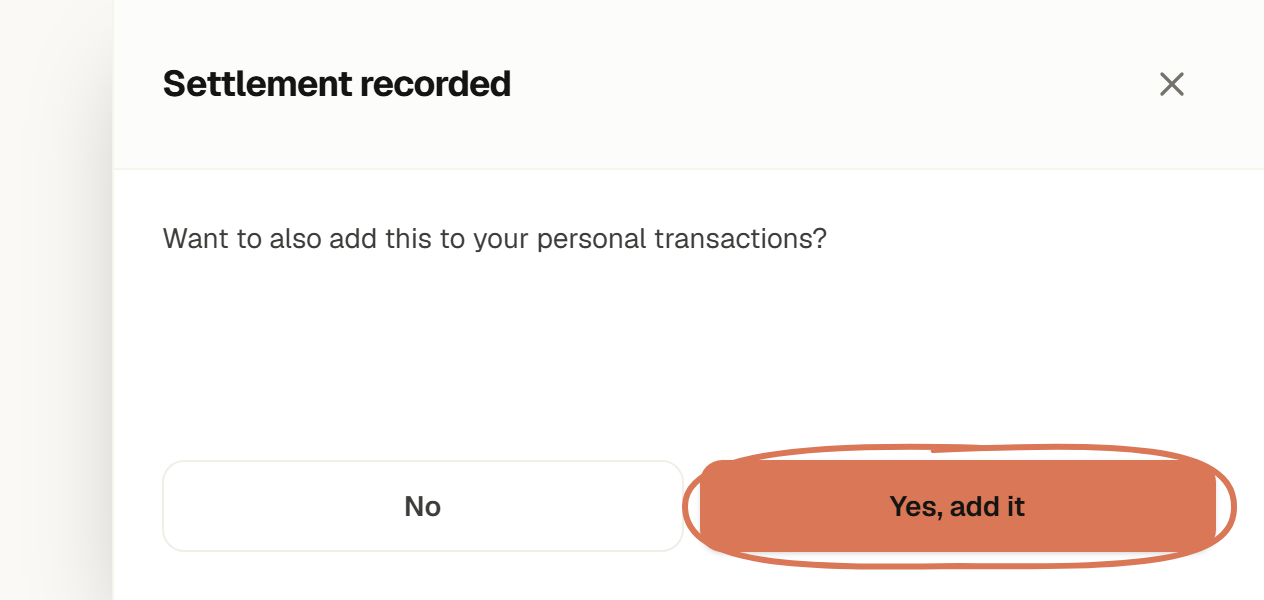
Then choose whether to add a personal transaction too. Example data · Select to enlarge. - 18
Export the Group's expenses
From Expenses, export everything to CSV — expenses and payments, including deleted ones, so you keep a complete record.
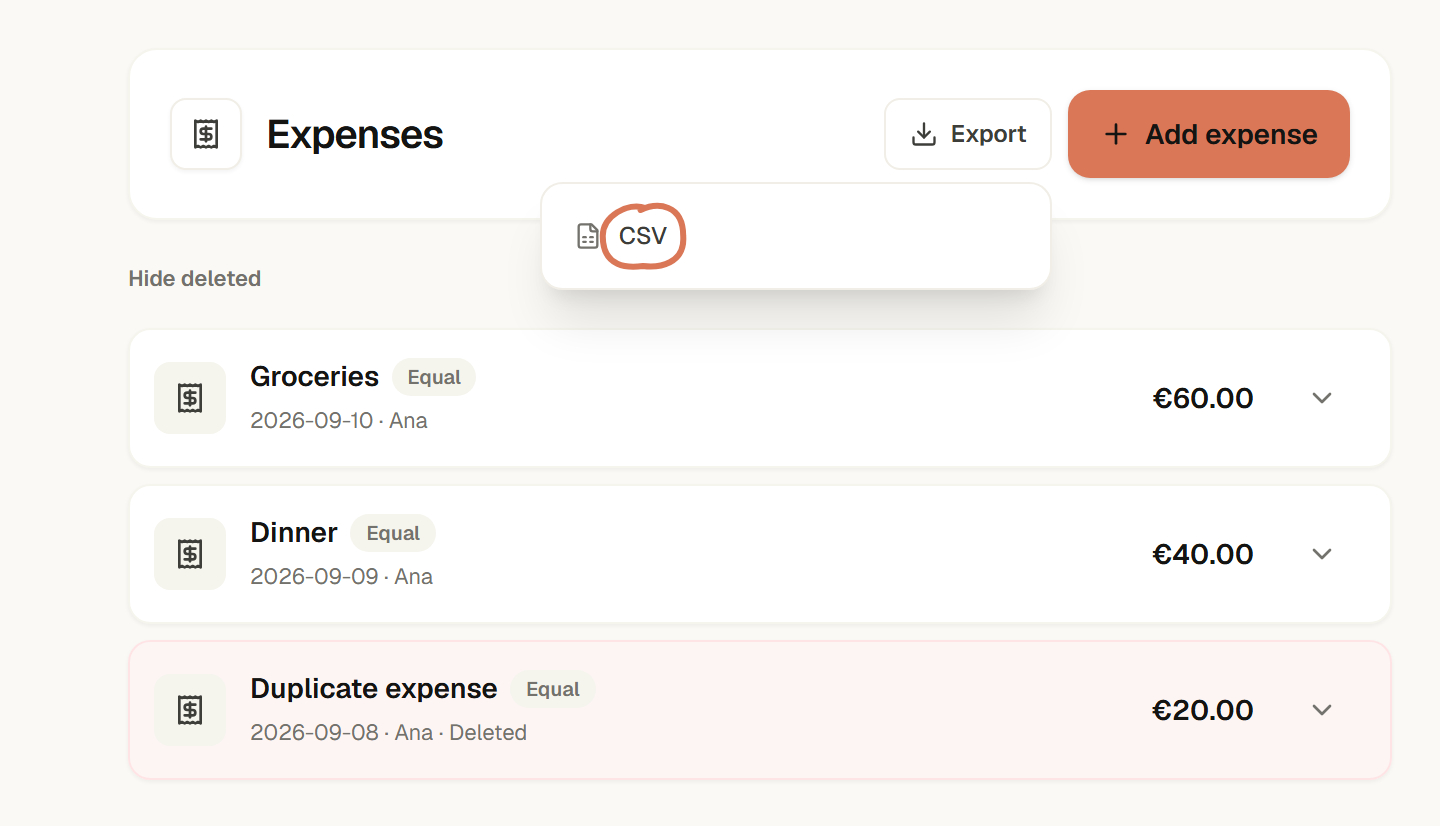
Export the complete record, including deleted expenses and payments. Example data · Select to enlarge.