
When debt, family costs and future plans all need the same money, it can feel like there is no good move left. Start by making the problem visible. You do not need to solve everything today.
Separate what you owe, what you spend each month and what you want to save for. Then choose the next decision using the numbers you have.
The screenshots below use fictional example data and the English app. Your amounts and projections will differ. Some features depend on your plan; check the access shown in your account.
1. Put every commitment in one place
List your income, essential household costs, minimum debt payments, regular family support and savings contributions. Use statements and current balances where possible.
Record an expense in IOWII
- Open Transactions, choose Add transaction and select Expense.
- Enter 125 in Amount, choose the date and your account, then select Groceries & Food under Category.
- Add Groceries in Description (optional) and choose Save Expense.
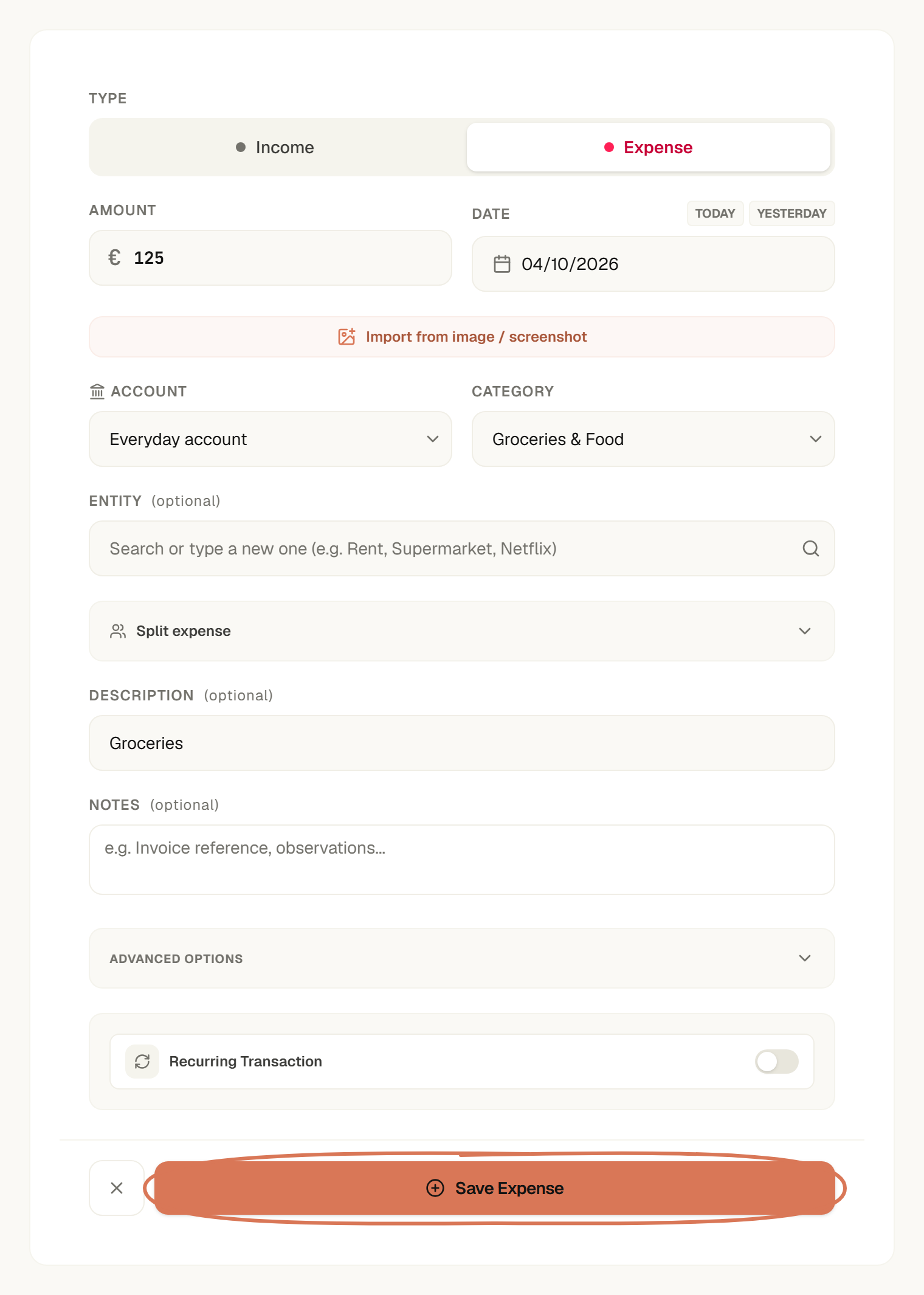
Example data. The ring marks the action that saves the expense. Open full-size expense form.
The expense appears in your transactions for that date and account. Repeat with the commitments you already know, then check the list against your statements.
See the Transactions guide for imports, recurring transactions and corrections.
2. Separate what you owe from what you might spend
A loan you already have is different from a large purchase you might make in two years. Sort your list into four groups:
- Existing obligations: rent, mortgage, loan payments and credit repayments.
- Everyday costs: groceries, transport, utilities and household basics.
- Savings you choose: an emergency fund, a deposit or travel.
- Possible future costs: moving, a wedding or helping family later.
For a future cost, estimate a target and date before deciding whether to borrow. Use the savings walkthrough below to see the monthly contribution you would need.
3. Find your monthly breathing room
Use today's income and costs. Leave out a hoped-for bonus, a future promotion or contributions nobody has agreed to make.
Set a category limit
- Open Budgets and choose Add budget, or open an existing category to edit it.
- Choose Groceries & Food and enter 300 in Limit (€).
- Check the spending history, then choose Save.
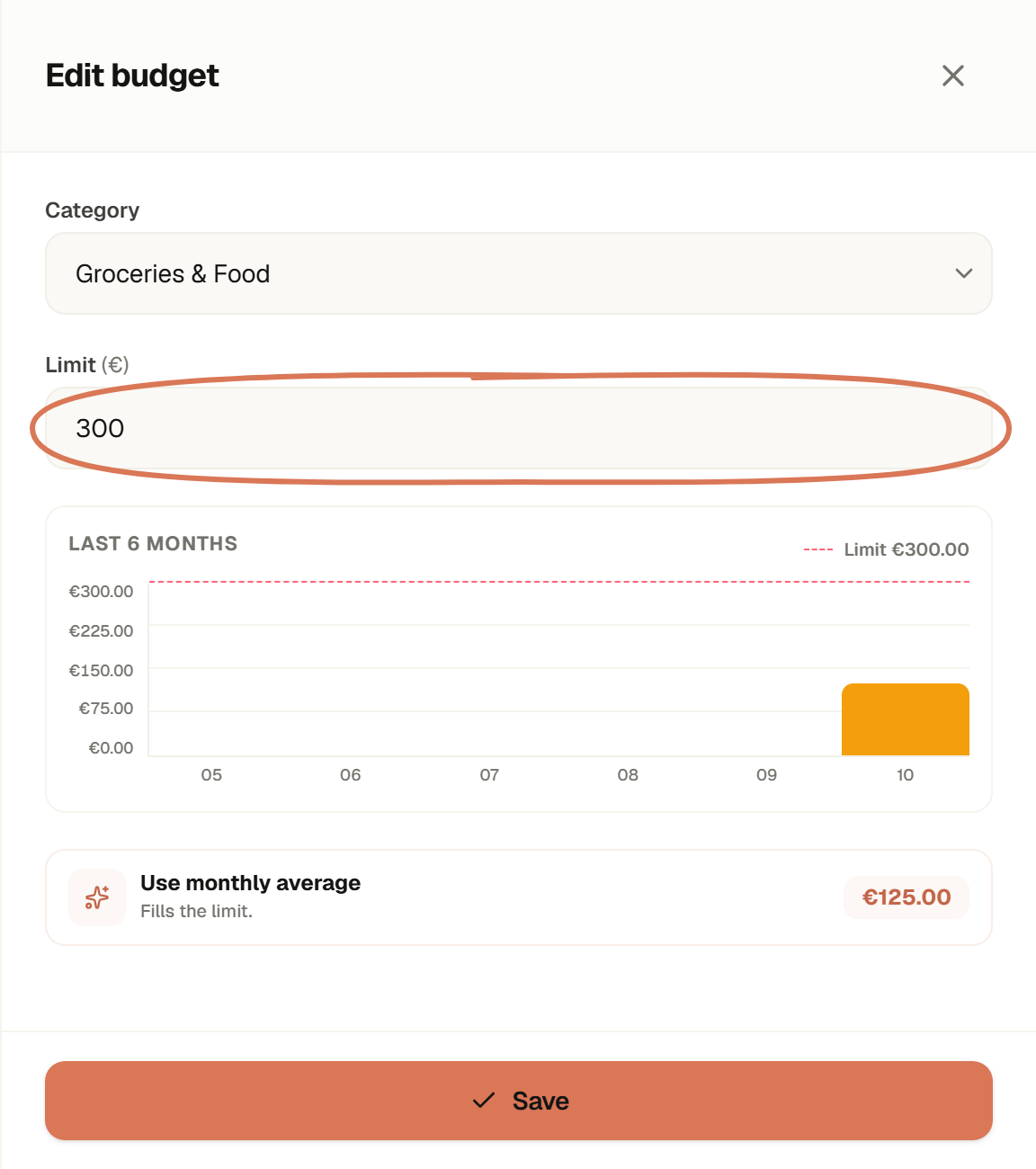
Example data. The €300 limit is a plan; the €125 is recorded October spending. Open full-size budget.
A category limit compares spending with your plan. It does not move money or stop purchases. See the Budgets guide for other budget options.
Read the Monthly Plan
- In Budgets, find Monthly Plan.
- Enter your planned Fixed expenses and Flexible spending. These fields update the plan as you edit them.
- Check the income, savings contributions and minimum debt payments included in the calculation. Use the savings and debt steps below to correct those inputs.
- Read Unallocated before committing to extra repayments.
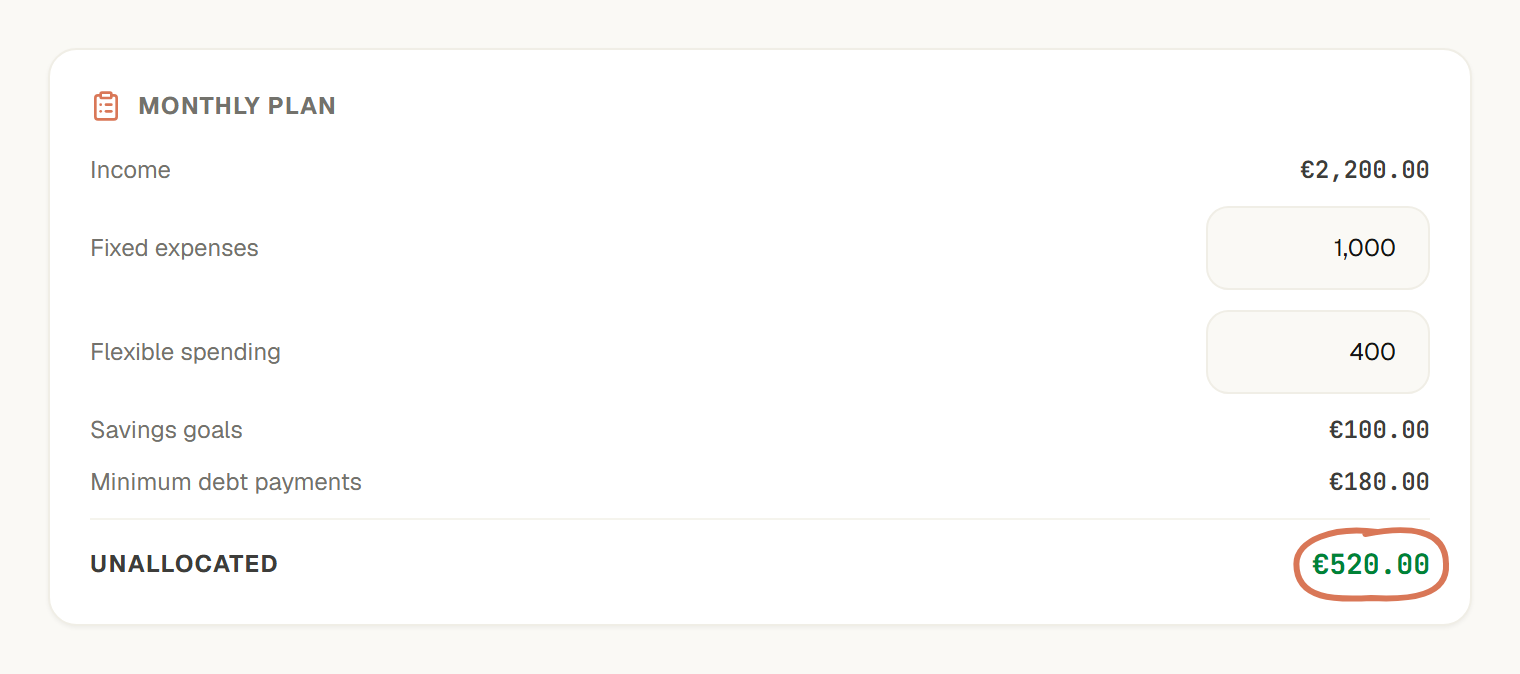
Example data. €2,200 − €1,000 − €400 − €100 − €180 leaves €520 unallocated. Open full-size Monthly Plan.
This is room within the monthly plan, not your bank balance or a guarantee that you can spend it. Check upcoming commitments and keep a buffer for costs you have not included.
| Your result | Next decision |
|---|---|
| Positive | Decide how much to reserve and how much to assign to a goal or extra repayment |
| Close to zero | Create room before adding a new commitment |
| Negative | Check missing income, required costs and amounts that can change |
4. Separate your debt from shared family costs
For any debt you help someone else repay, write down whose name it is in, your agreed contribution and when that contribution ends. A shared expense record does not change who owes the lender.
A Group can record shared household costs without showing your personal accounts.
Create a Group
- Open the context switcher and choose Create group.
- Enter a name, such as Ana & Miguel, and choose Household.
- Add the people you want to invite by email, then choose Create group. Each person accepts their invitation before joining.
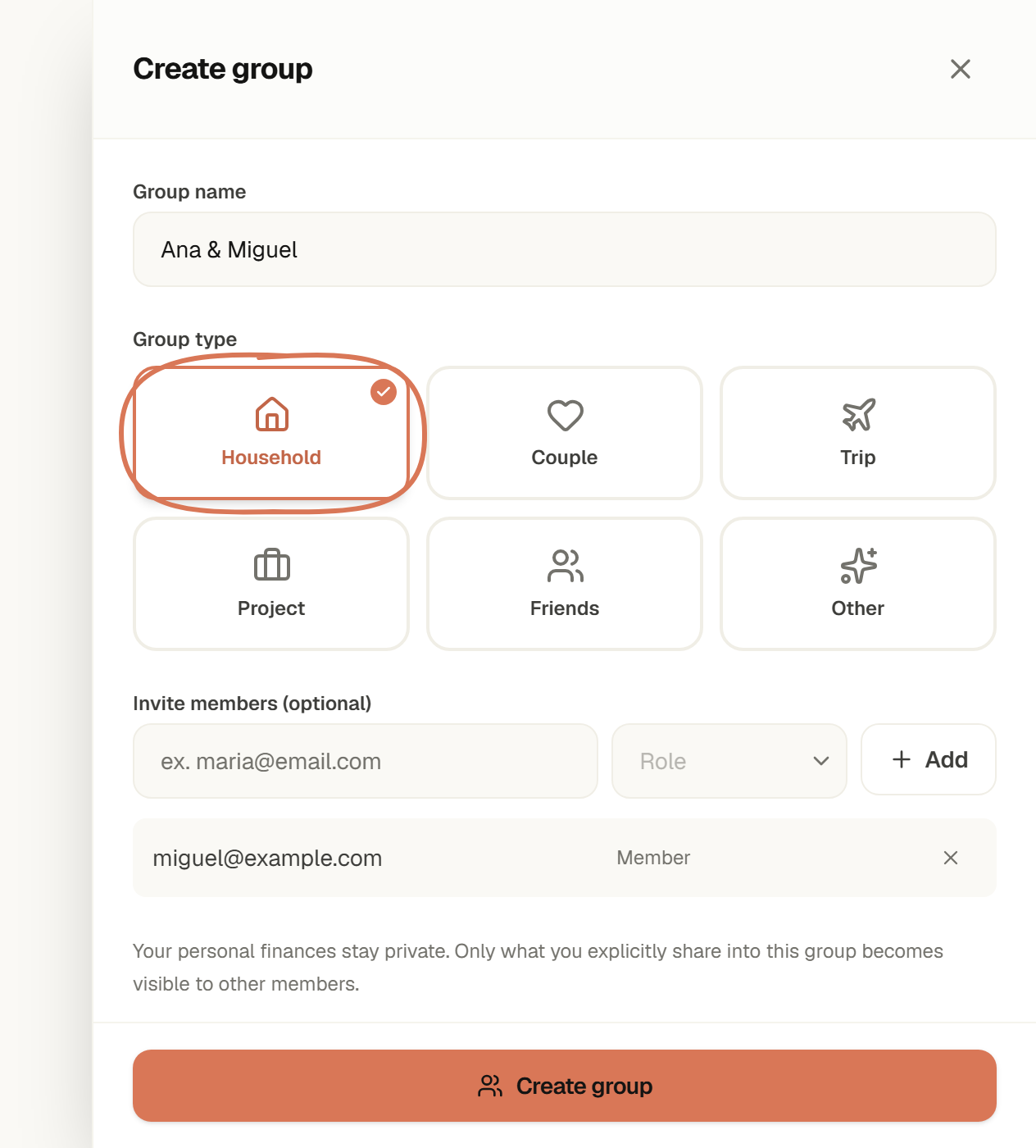
Independent household example. Choose the group type before creating it. Open full-size group setup.
Share an expense and check the balance
- In Transactions, choose Share expense for the expense you want to share.
- Select the Group, confirm who paid and choose the participants. For a €60 grocery expense shared equally by two people, check that each share is €30.
- Choose Share expense to confirm. Only the selected expense is shared with the Group.
- Switch to that Group and open Balances. Expand a person's balance to see the expenses and payments behind it.
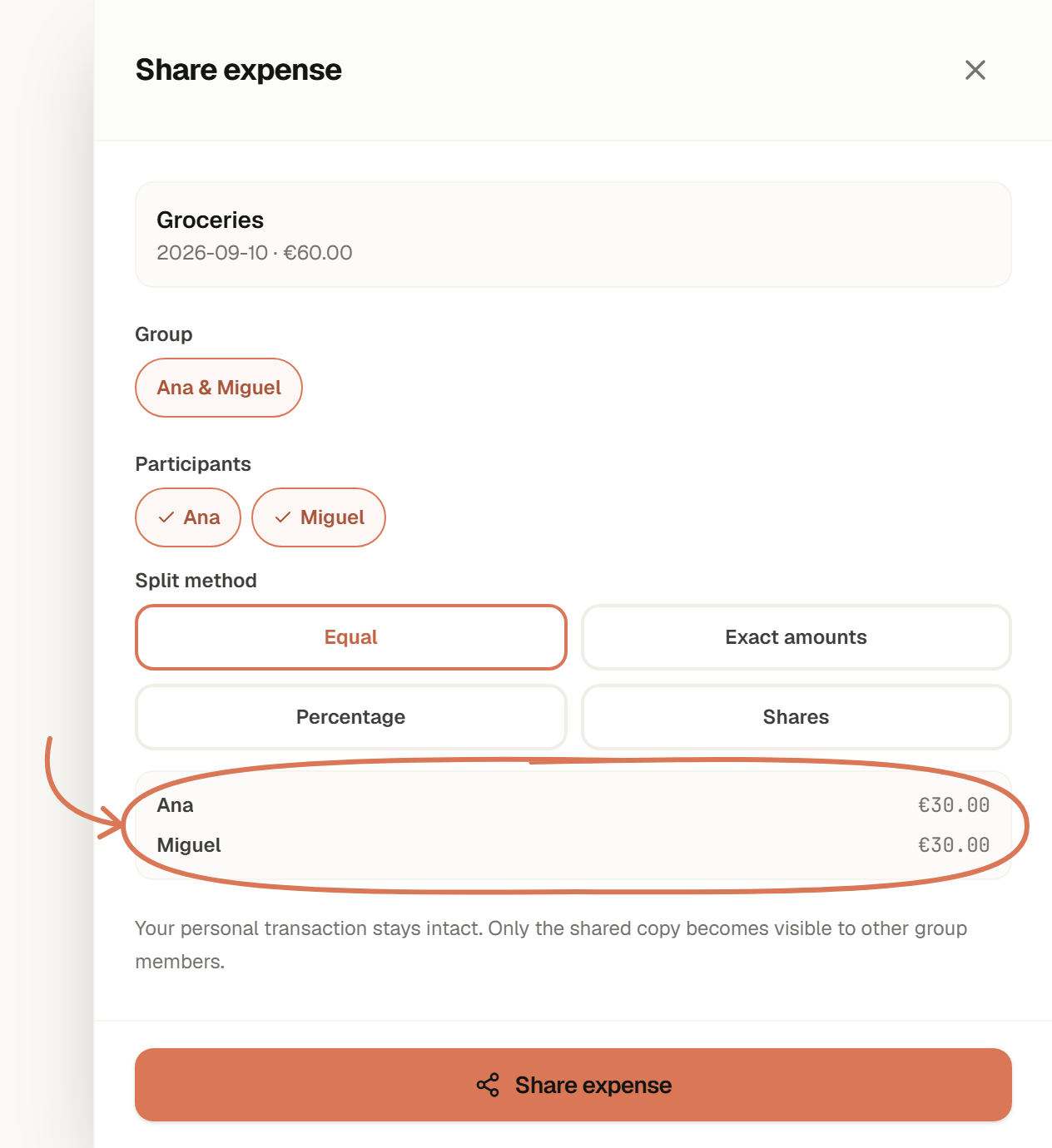
Independent household example. Confirm the people and split before sharing. Open full-size sharing form.
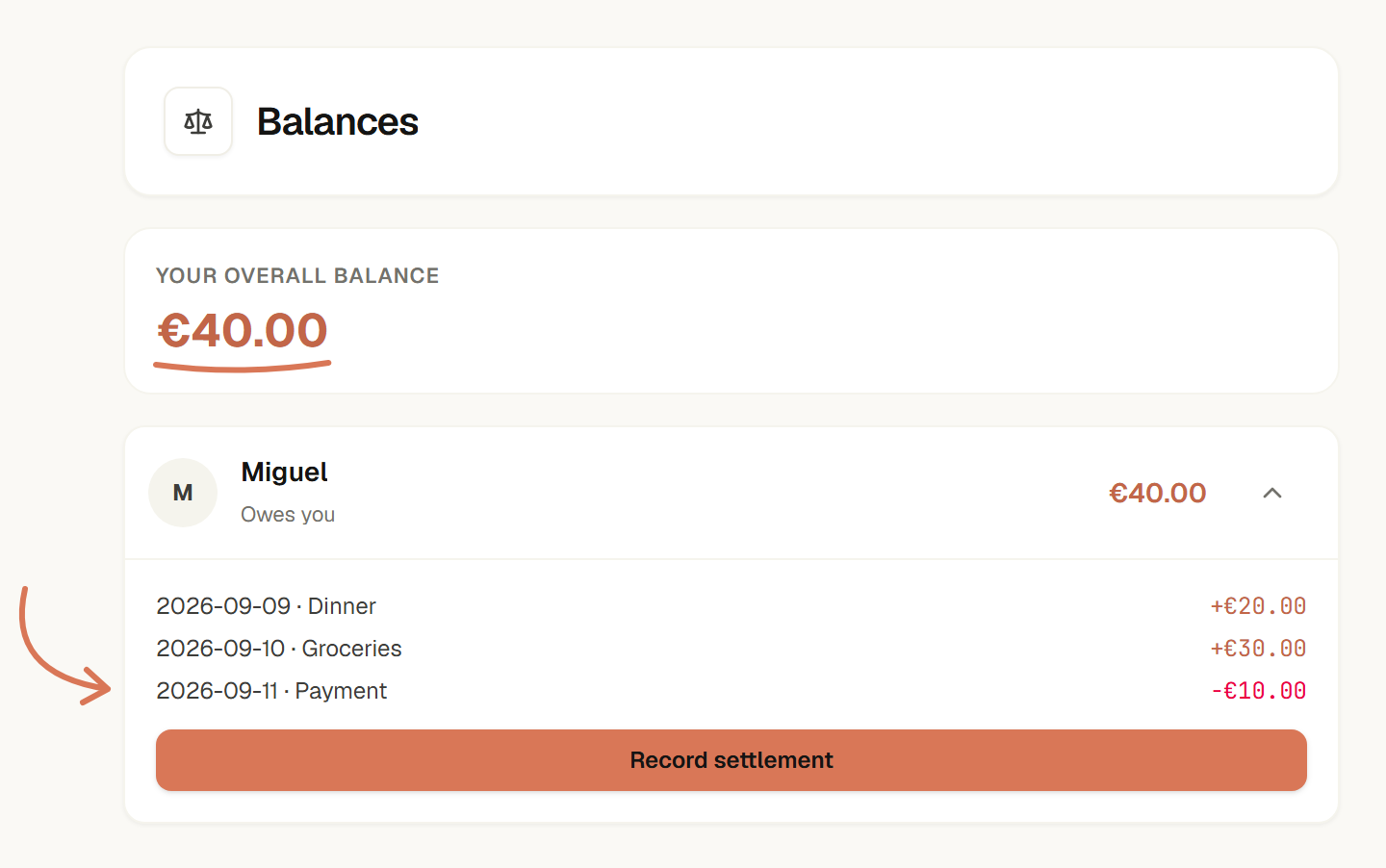
This separate history explains the €40 balance: €30 + €20 − €10. It includes more than the one expense above. Open full-size balance.
Your personal accounts and unshared transactions stay outside the Group. See the Groups guide for invitations, permissions and settlement.
5. Give every debt the details it needs
Check the current balance, annual rate, minimum payment and next due date against the lender's statement. Keep the contract's rate changes and repayment conditions beside your plan.
Add a debt
- Open Debt Planner and choose Add debt to start your first debt.
- In New Debt, enter Credit card as the institution and choose Credit Card as the type.
- Enter an outstanding balance of 2400, an annual rate of 18% and a Fixed minimum payment of 100.
- Set Next payment date to 15 October 2026, then choose Add debt.
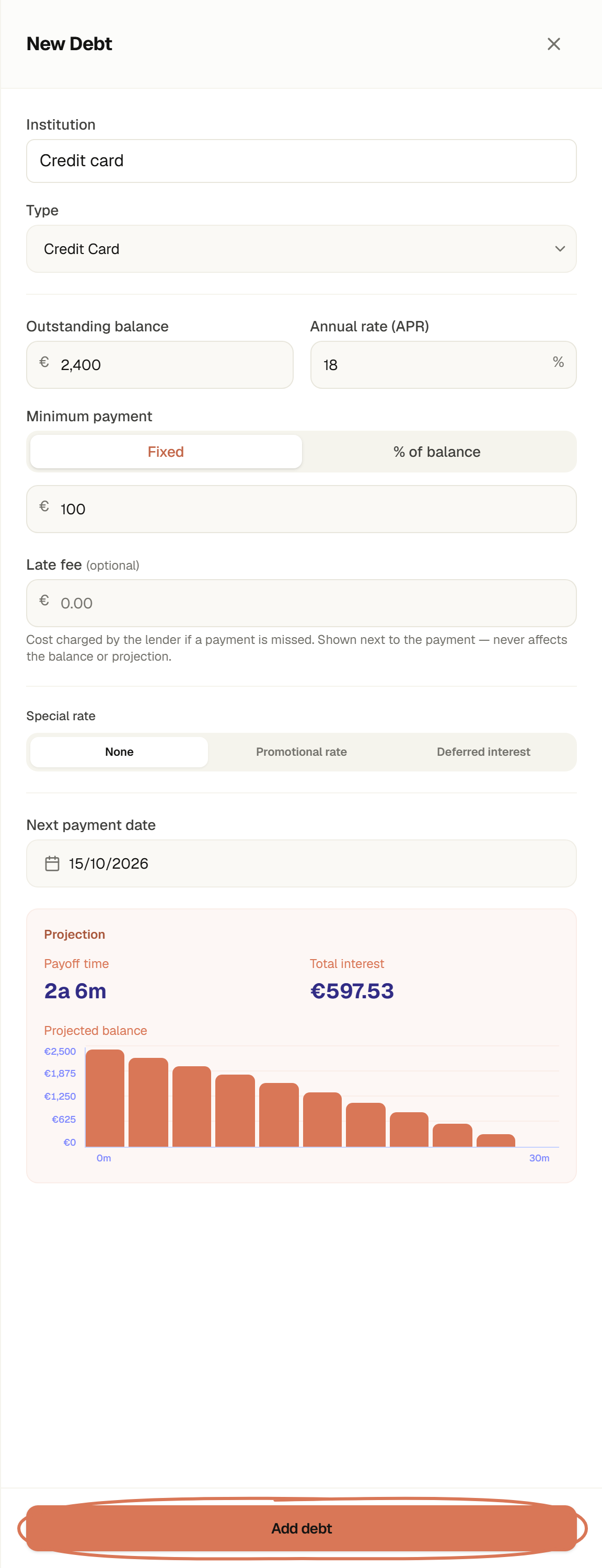
Example data. Use your lender's figures in your own plan. Open full-size debt form.
The debt appears in your debt list and contributes its minimum payment to the plan. Optional late fees are informational; they do not change the projected balance.
Compare repayment strategies
- Add every debt you want included. This example also includes a €1,200 personal loan, at 8%, with an €80 minimum payment.
- Enter 100 in Monthly extra. This is extra on top of the minimum payments.
- Open Comparison and compare the payoff time and estimated interest for Avalanche and Snowball.
- Change the extra amount to test an affordable alternative, then choose the strategy you want to use.
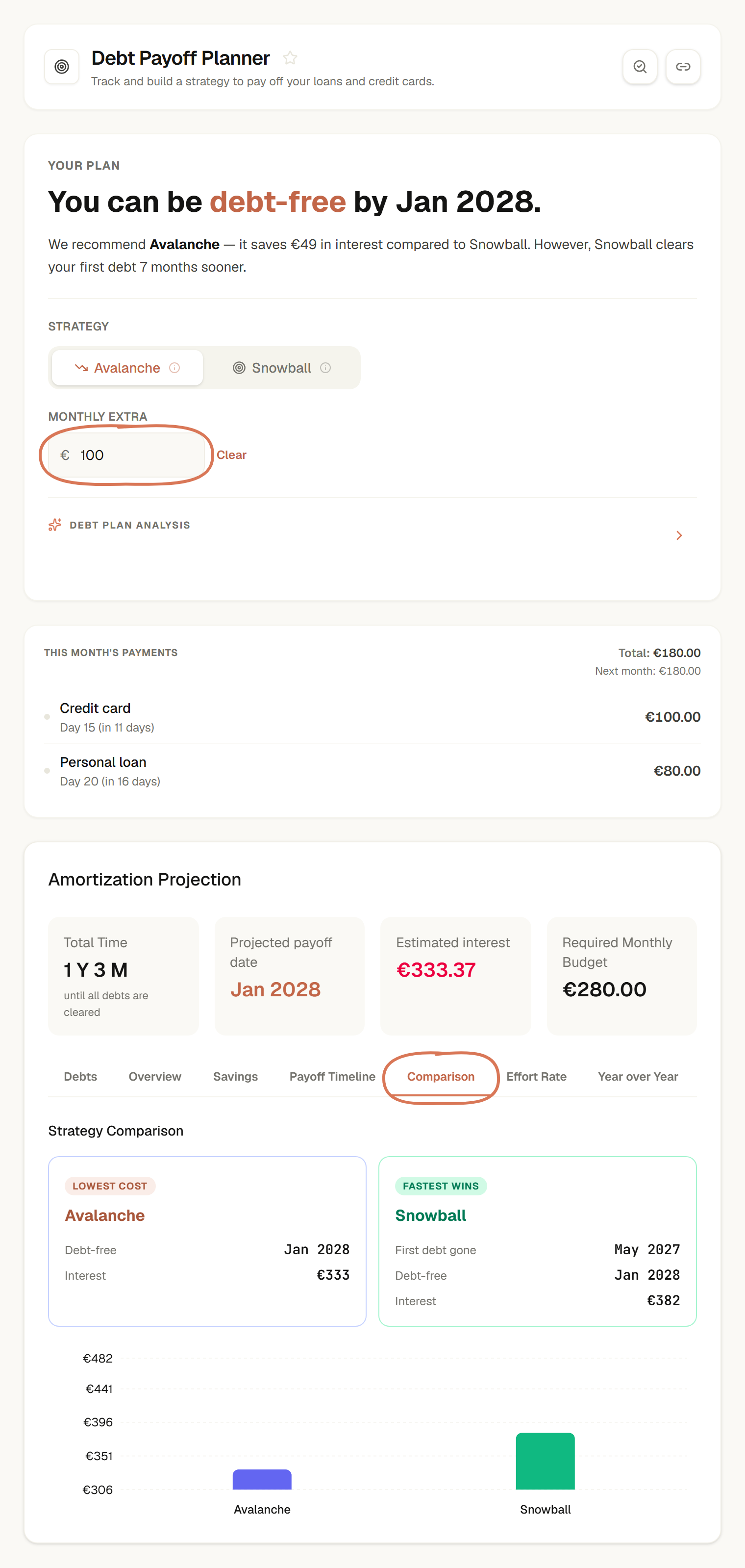
Example data. Compare the projected trade-off before choosing an extra repayment. Open full-size debt comparison.
Avalanche prioritises higher rates; Snowball prioritises smaller balances. The result is an estimate based on the debts and payment assumptions entered. Choosing a strategy does not send payments to a lender.
See the Debt Planner guide for special rates, payment records and projection options.
6. Turn future expenses into goals
Give a future cost a target, date and monthly contribution. You can then decide whether the amount or timing needs to change.
Create a savings goal
- In the Dashboard's Savings card, choose Create goal. In New goal, leave Goal selected.
- Enter Emergency fund, a Target (€) of 3000 and Current (€) of 600.
- Set Target date to 4 October 2028 and enter 100 in Per month (€).
- Choose Create goal.
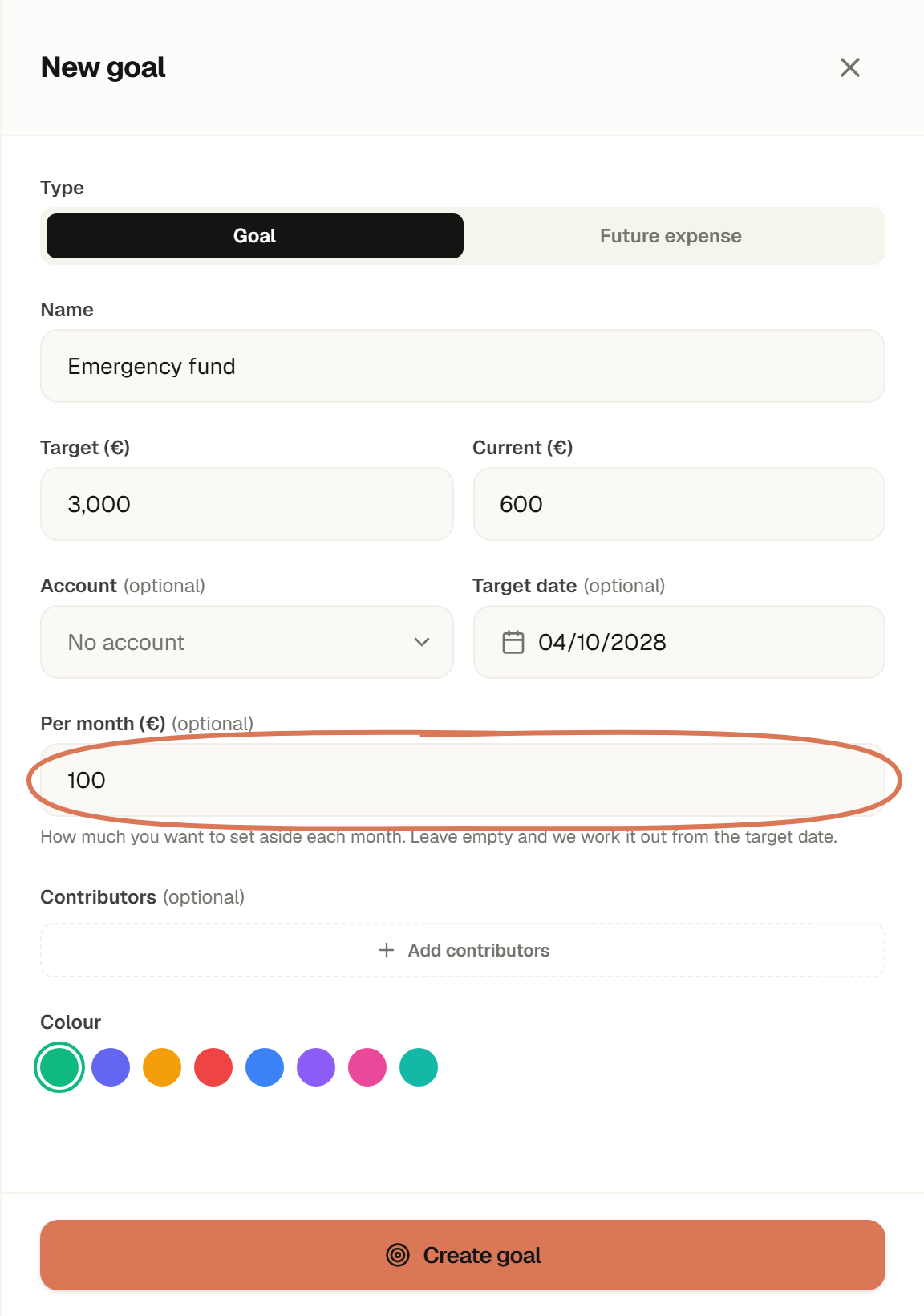
Example data. The monthly amount is what you plan to set aside. Open full-size goal form.

Example data. €600 of €3,000 is 20%; entering a contribution does not transfer money. Open full-size goal progress.
Review the goal when its target, deadline or your available income changes. See the Savings guide for future expenses and contribution tracking.
7. Test a small change before committing to it
Use the Monthly extra comparison to test a repayment amount. For a savings change, review the target and monthly contribution in the goal walkthrough. Write down assumptions about future income separately from today's figures.
Ask the Finance assistant about recorded spending
- Open the Finance assistant while viewing Transactions.
- Check Using: at the top so you know which page, period and account the question covers.
- Type Where am I spending most this month? and choose Send message.
- Check its explanation against your recorded transactions. If it proposes adding a transaction or budgets, review the proposal before confirming.
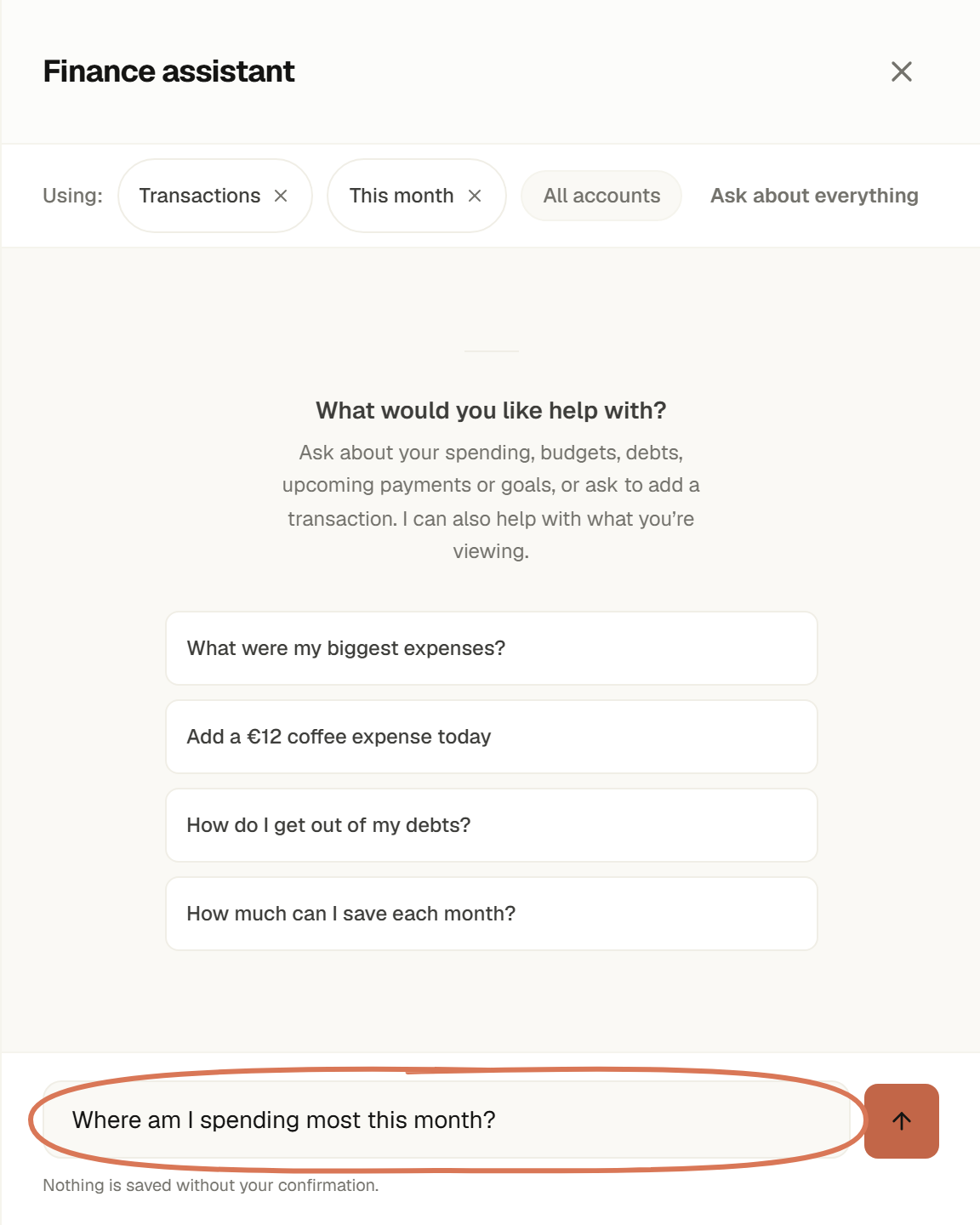
Example question before sending. This shows the scope and composer, not a generated answer. Open full-size assistant.
The assistant can explain information already in IOWII. Missing transactions, balances or rates can change that explanation. Nothing is saved from a proposal until you confirm it.
8. Decide what extra income is for
If your income rises, decide how much goes to debt, savings and everyday costs before adding new commitments.
Record the income using the transaction form with Income selected. Then revisit your Monthly Plan, goal contribution and Monthly extra. Use the same steps above with your updated figures.
9. Review when something changes
Review the plan when income, living costs, family contributions or priorities change. A cleared debt is also a reason to decide where its payment should go next.
Add a payment reminder
- Open Reminders and find New Reminder.
- Choose Credit card under Debt (optional). Check the linked debt's date and amount.
- Enter Pay credit card as the title. For this example, use 15 October 2026, €100 and No repeat.
- Choose Add, then check the new entry under Upcoming.
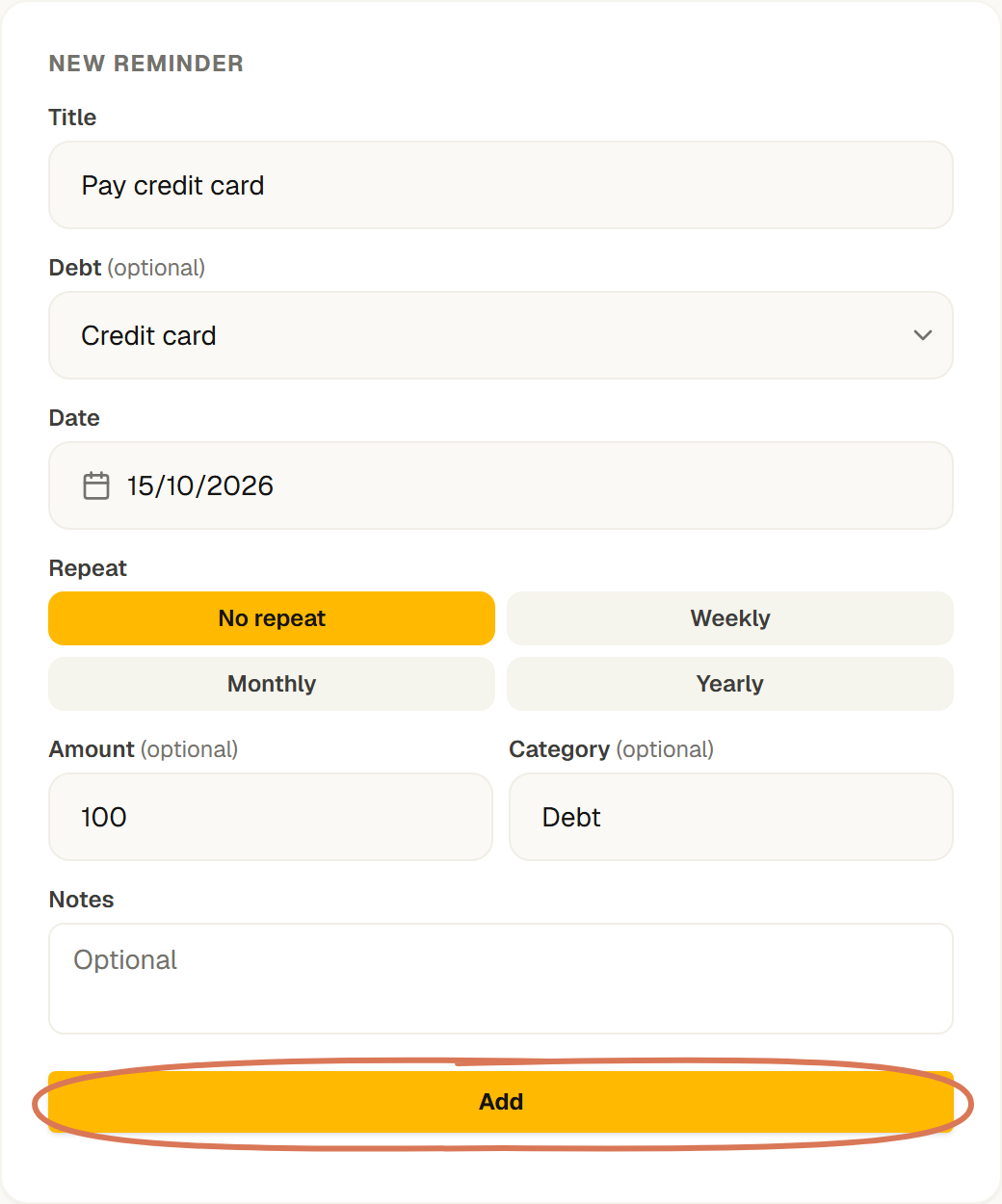
Example data. Check the due date before adding the reminder. Open full-size reminder form.
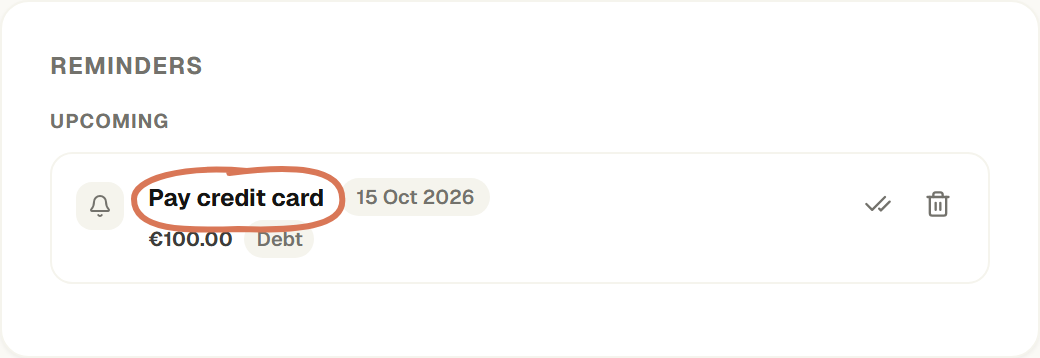
Example data. The saved reminder is visible under Upcoming. Open full-size saved reminder.
A reminder records the date; it does not make a payment. Repeat options currently store the recurrence choice without automatically creating the next reminder. For a repeating review, use your calendar and check payment dates regularly.
See the Reminders guide for linking, completing and deleting reminders.
Start with one thing today
Choose the task creating the most uncertainty:
- Unsure where money goes? Record an expense, then set a limit.
- Several debts? Add their details and compare repayments.
- A future cost? Create a savings goal.
- Shared household costs? Create a Group and confirm the split.
- Unclear numbers? Ask about recorded spending.
Make one part visible, choose the next decision and return when your situation changes.
This article explains how to organise information in IOWII. It is general educational content, not personalised financial, investment, tax or legal advice.